Organization becomes harder when several people share tasks, deadlines, client commitments, and operational records. Important work can disappear across messages, separate files, or personal notes, while unclear ownership creates duplicated effort or missed follow-ups. Business Excel templates offer small teams a structured way to keep recurring information in consistent fields and review work from a shared source. Their usefulness, however, depends on accurate updates, sensible design, clear responsibilities, and regular review. A spreadsheet can support organization, but it cannot make decisions, complete assignments, or correct weak team habits without disciplined use.
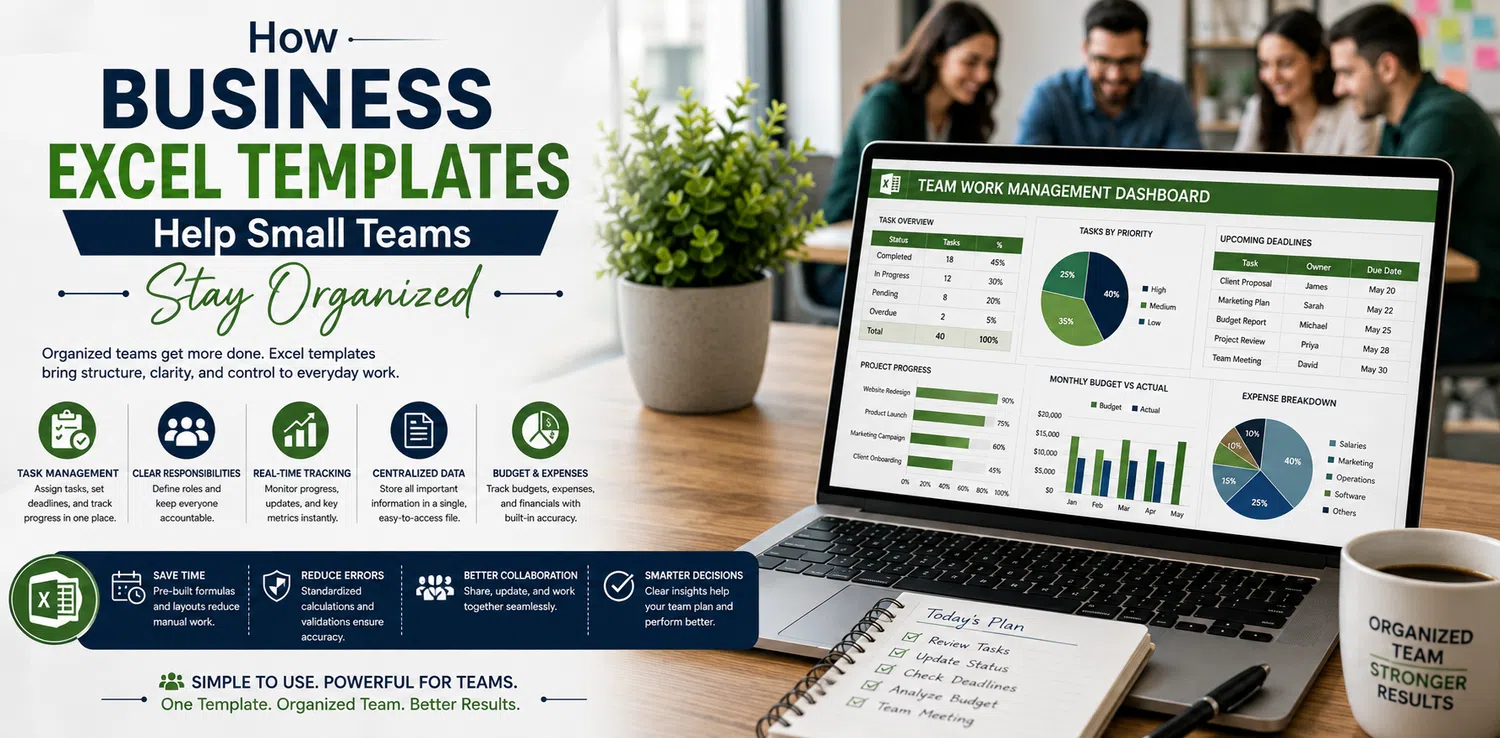
Why Small Teams Benefit from Shared Structure
Small teams often move quickly, and one person may handle several responsibilities. Without a common structure, task details, client updates, budget figures, inventory records, and meeting actions can develop different formats. Consequently, team members spend time locating information or confirming which record is current.
A business Excel template creates predefined columns, status options, dates, and review fields. This standardization makes recurring work easier to scan, filter, update, and hand over.
Choose Templates Around Actual Work
Useful template types can include:
Task and project trackers
Weekly work planners and team schedules
Client management sheets
Sales and follow-up trackers
Budget and expense templates
Cash flow worksheets
Inventory and purchase trackers
Meeting action logs
KPI trackers and simple dashboards
Content calendars and vendor records
Not every team needs every template. A service team may prioritize client follow-ups and project deadlines, while a product-based operation may need inventory and purchase records. Therefore, template selection should begin with a recurring organizational problem rather than a long feature list.
Turn Tasks into Visible Responsibilities
A task tracker can centralize work that might otherwise remain scattered across messages or individual notes. Each row can represent a defined assignment with enough information for the team to know who acts, when action is due, and what progress has occurred.
Clear ownership matters especially in small teams because overlapping roles can create assumptions that another person will handle an item.
Record the Fields That Drive Action
A practical task record may contain:
Task name and brief description
Assigned owner
Priority
Start date and due date
Status
Dependency
Notes
Completion date
One clear owner generally makes responsibility easier to identify. Other people may contribute, but the owner field should show who remains accountable for the next action.
A simple workflow might move from Not Started to In Progress, Blocked, Under Review, and Completed. Teams can choose different labels, but they should keep the options limited and consistent. Moreover, dropdown lists can prevent small wording differences from fragmenting filters and summaries.
Track Projects Without Losing the Details
Project templates connect assignments with workstreams and milestones. Useful fields include project name, milestone, task, owner, due date, status, dependency, risk, and next action. Consequently, the team can review shared progress without relying on memory.
Make Blockers Visible
Dependencies show when one task awaits another. A Blocked status should also include a concise reason and next action. Filters can isolate a project, owner, milestone, or status, while sorting by due date brings urgent work into view.
Use Deadlines and Priorities Together
Due dates show timing, while priorities indicate relative importance. Small teams need both because the nearest deadline is not always the most important work. A High, Medium, and Low structure may suffice, although another consistent system can work equally well.
Highlight Work Requiring Attention
Conditional formatting can flag overdue, near-due, blocked, or high-priority work. However, excessive colors can hide genuine exceptions. Teams should base priorities on business importance, timing, dependencies, and commitments. Recurring review dates and client deadlines can also appear in planning sheets so teams can anticipate them consistently.
Organize Client and Sales Activity
Client templates can centralize contact details, assigned team members, last-contact dates, follow-up dates, statuses, deliverables, payment status where relevant, and concise notes. Standard fields make handoffs easier when several people support the same client.
Keep Follow-Ups Specific
A record might move from Contacted to Awaiting Response, Follow-Up Due, and Completed. Sales sheets can similarly track leads, opportunity stages, expected values, owners, next actions, and outcomes. Consistent labels improve filtering, but spreadsheets cannot create customer responses or guarantee sales.
Coordinate Budgets, Expenses, and Inventory
Shared operational templates can organize planned expenses, actual costs, vendor payments, project costs, reimbursements, recurring expenses, and variances. Basic formulas can total categories, while conditional formatting can flag unusual differences. However, these trackers do not replace formal accounting records where required.
Keep Product Records Consistent
Product-based teams may record SKU, product name, category, quantity, supplier, reorder level, storage location, and last update date. Filters can isolate suppliers or low-stock items. As transaction volume, locations, or simultaneous editing increase, manual inventory spreadsheets can become harder to maintain reliably.
Capture Meeting Actions Clearly
Meeting logs can record decisions, action items, owners, due dates, statuses, and follow-up notes. Teams should move important actions into the primary tracker promptly so meeting notes do not become a separate information silo. Consequently, decisions remain visible alongside other deadlines and responsibilities.
Standardize Shared Spreadsheet Records
Consistent column names, statuses, date formats, priorities, categories, naming conventions, and file locations make shared records easier to scan and hand over.
Use Dropdowns for Repeated Fields
Data validation can standardize status, priority, owner, department, project, category, or task type. Dropdowns prevent alternate wording from fragmenting filters and summaries. However, validation cannot confirm that a person selected the correct option, so teams still need clear definitions.
Use Filters, Sorting, and Summary Views
Filters let team members isolate records by owner, status, priority, client, project, category, or due date. Sorting can place overdue tasks or upcoming deadlines together, reducing the need to scan every row.
Build Summaries from Reliable Data
Basic formulas can count open, completed, or overdue tasks and total budget, sales, or inventory values. A simple dashboard may show work by owner, project status, budget variance, pipeline stages, or inventory alerts. However, summaries inherit errors from outdated or duplicated source rows. Freeze panes and search functions can also make long sheets easier to navigate.
Support Recurring Work with Reusable Structures
Templates can support weekly task reviews, client follow-ups, monthly budget checks, inventory counts, pipeline reviews, content planning, vendor checks, and meetings without rebuilding the same structure repeatedly.
Create a Consistent Review Rhythm
A weekly team review can:
Review overdue tasks.
Confirm owners.
Check upcoming deadlines.
Update statuses.
Resolve missing information.
Review blocked work.
Check workload distribution.
Archive completed items.
Carry forward unfinished work.
Confirm the master file.
Regular review matters more than creating the spreadsheet once because current statuses, deadlines, ownership, and notes must reflect actual work.
Review Workload Visibility
Owner, status, priority, and due-date fields can reveal unassigned work, blocked tasks, or assignments accumulating with one person. However, row counts do not measure effort. Team leads should review complexity, dependencies, timing, and scope before changing responsibilities.
Reduce Duplicate Work
A central tracker can reduce duplicate effort when records use clear names, owners, statuses, and current notes. Before adding a task, client, vendor, or project, users should search existing records. Duplicate checks and consistent naming conventions can also expose repeated entries, although team members must use the shared file consistently.
Control Spreadsheet Versions and Access
Uncontrolled copies represent one of the largest risks in spreadsheet-based teamwork. If several versions circulate, different people may update different files and later struggle to determine which information is current.
Strong version habits can protect the usefulness of an otherwise well-designed template.
Maintain a Recognized Master File
Practical controls include:
Define where the current file lives.
Maintain one approved master version.
Use clear file names and update dates.
Avoid unnecessary duplicate copies.
Limit who can edit important formulas.
Keep appropriate backups.
Remove outdated working copies.
Review access when responsibilities change.
Protected cells can reduce accidental formula changes, while access limits can reduce unnecessary editing. Teams should also avoid placing sensitive information in operational spreadsheets unless the workflow genuinely requires it and organizational handling rules permit it.
Evaluate Ready-Made Business Templates Carefully
A ready-made template can save setup time when its structure matches the team's workflow. Price or visual polish, however, does not establish usability.
Teams that plan to buy business excel templates online in usa should evaluate workflow fit, formula transparency, customization, compatibility, ownership fields, deadline controls, and ease of shared use before choosing a workbook based on appearance.
Check Practical Selection Criteria
Useful criteria include:
Clear layout and logical columns
Relevant input fields
Owner and deadline tracking
Consistent status controls
Functional filters
Useful dropdown lists
Transparent formulas
Protected calculation cells
Readable summary views
Easy customization
Clear instructions
Software compatibility
Appropriate scalability
Reusable monthly or weekly structure
Teams should test sample records before adopting a template widely. If customization changes formulas, linked worksheets, or dashboards, those features should be tested again.
Match Template Complexity to Team Needs
Basic templates can suit a few tasks, one project, limited reporting, and simple workflows. More advanced workbooks may add value when teams need several projects, dashboards, reusable processes, ownership tracking, deadline alerts, or linked summaries. Therefore, teams should pay for useful functions rather than decoration or unnecessary worksheets.
Recognize When a Team Is Outgrowing Excel
Spreadsheets can remain practical for small teams with straightforward workflows, moderate data volumes, manual reviews, and limited collaboration requirements. As operations grow, however, coordination needs may exceed what shared workbooks handle comfortably.
Outgrowing Excel reflects changing operational requirements rather than failure of the original template.
Watch for Increasing Coordination Friction
Signs can include:
Frequent conflicting file versions
Accidental overwrites
Many simultaneous editors
Repeated manual reminders
Excessive copying between worksheets
Difficult permission management
Complex task dependencies
Growing reporting requirements
Large record volumes
Need for extensive automation
Dedicated team systems may become more suitable when real-time collaboration at scale, automated notifications, detailed activity histories, complex permissions, extensive integrations, or connected departmental workflows become essential.
Avoid Common Business Spreadsheet Mistakes
Even a well-structured template becomes unreliable when the team stops maintaining it. Most spreadsheet problems involve unclear processes, inconsistent data, excessive complexity, or weak file control.
Teams can reduce these issues by defining simple usage rules from the beginning.
Keep the Tracker Useful
Common mistakes include:
Leaving important tasks without owners
Omitting due dates
Using inconsistent status labels
Creating duplicate records
Allowing data to become outdated
Adding unnecessary columns
Overwriting formulas
Maintaining uncontrolled copies
Combining unrelated processes in one crowded sheet
Skipping regular reviews
Clear ownership, controlled dropdowns, protected formulas, naming conventions, and scheduled reviews can reduce these problems. Nevertheless, spreadsheets still depend on people entering accurate information and acting on what the records show.
Prioritize Usability Over Decoration
Strong templates make routine entry obvious. Clear input areas, logical column order, readable formatting, limited colors, visible instructions, and transparent formulas help team members use the workbook consistently. Moreover, unnecessary columns should be removed when they do not support a decision, record, or recurring action.
Teams should also separate unrelated processes when one worksheet becomes crowded. A task tracker, for example, should not become an improvised inventory ledger merely because space remains available. Separate worksheets can still belong to one workbook when their relationships are clear. Practical design reduces administrative friction, but accurate information and agreed working habits remain essential for every user.
Conclusion
Business Excel templates can help small teams organize tasks, projects, clients, deadlines, budgets, inventory, meetings, and recurring processes through a shared structure. Their value depends on accurate updates, clear ownership, consistent statuses, sensible fields, and regular review. Template quality and workflow fit matter more than decorative features or price. Small teams can often manage straightforward operations effectively with well-maintained spreadsheets. However, growing collaboration, automation, permissions, reporting, or data requirements may eventually make specialized systems more practical than increasingly complex shared workbooks.
FAQs
Can Small Teams Use Excel for Task Management?
Yes. Small teams can use Excel to record tasks, owners, priorities, due dates, statuses, dependencies, and completion dates. Filters can isolate each person's assignments, while conditional formatting can highlight overdue work. The tracker remains useful only when team members update records consistently and follow agreed ownership and review practices.
How Can Excel Help with Project Tracking?
Excel can organize projects into milestones, workstreams, tasks, owners, deadlines, dependencies, risks, and next actions. Shared fields give team members a consistent view of progress. Additionally, filters and summary formulas can simplify reviews. Complex projects requiring extensive automation or connected dependencies may eventually need more specialized systems.
Can a Spreadsheet Organize Client Follow-Ups?
Yes. A client sheet can record contact details, assigned team members, last-contact dates, follow-up dates, statuses, deliverables, and concise notes. Standardized fields make handoffs easier when several people support one client. However, the team must update interactions promptly so other members do not rely on outdated information.
How Can Teams Track Deadlines in Excel?
Teams can record due dates beside each task, milestone, follow-up, or deliverable and sort records chronologically. Conditional formatting can highlight overdue or near-due items. Recurring deadlines can also appear in planning sheets. Teams should still review priorities and dependencies because the nearest date is not always the most important work.
Why Are Dropdown Lists Useful in Shared Spreadsheets?
Dropdown lists standardize repeated entries such as status, priority, owner, project, department, or task type. Consistent values make filtering and summaries more reliable and reduce variations in wording. However, validation cannot determine whether someone selected the correct value, so teams still need clear definitions and careful updates.
How Should Small Teams Control Spreadsheet Versions?
Teams should identify one approved master file, define where it lives, use clear file names, limit unnecessary copies, maintain suitable backups, and remove outdated working versions. They should also protect important formula cells where appropriate. Strong version control helps prevent conflicting updates from weakening otherwise accurate shared records.
Are Premium Business Templates Better Than Basic Templates?
Not automatically. A basic template may suit teams with few tasks, simple workflows, and limited reporting. More advanced templates can add value through dashboards, linked worksheets, validation, and reusable formulas when those features solve real problems. Teams should evaluate usability, formula quality, compatibility, and workflow fit before paying.
Can Excel Help a Team See Workload Distribution?
Yes. Owner, status, priority, and due-date fields can show where active work accumulates and identify assignments without clear responsibility. However, task counts do not measure complexity or effort accurately. Teams should use spreadsheet summaries as discussion prompts and consider deadlines, dependencies, scope, and actual workload before reallocating assignments.
When Should a Small Team Move Beyond Excel?
A team may need a dedicated system when simultaneous editing, automated reminders, complex permissions, extensive integrations, detailed activity histories, large record volumes, or connected workflows become difficult to manage in spreadsheets. Moving beyond Excel does not mean earlier templates failed; operational requirements may simply have become more complex.
What Should Teams Check Before Choosing a Business Template?
Teams should check whether the template matches their workflow, uses clear fields, supports ownership and deadlines, provides useful filters, offers consistent status controls, and keeps formulas transparent. Compatibility, customization, instructions, readability, scalability, and reuse also matter. Testing sample records can reveal practical problems before the team adopts the workbook widely.