This guide will walk you through the steps to style JSON in PDFs using custom formatting tools and answering questions such as the conversion of JSON to PDF, styling JSON in popular software tools such as VSCode and Notepad++, and more.
JSON is becoming a standard format for structured data in compact and readable forms. However, when using JSON in most applications, additional formatting is often necessary to increase readability, especially in producing PDFs from JSON for reports, documentation, or distribution.
Why Format JSON Data?
Raw JSON data often proves to be difficult to read, especially with nested structures or large datasets. Well-formatted JSON is
Readable: Easier to read and debug.
Efficient: It reduces errors while sharing or collaborating.
Professional: Guarantees clarity when JSON data is embedded in PDFs or reports.
How to Pretty-Print a JSON File?
Pretty printing JSON is formatting with proper indentation and alignment, thereby improving the readability of the same. Here are some methods for pretty-printing JSON data:
1. Use of JSON Formatter Tools Online
For quick formatting jobs, you can use online JSON formatters like JSON Formatter & Validator. Just paste your JSON in the tool, and it will indent and align the data accordingly.
2. Prettify JSON in VSCode
There is a shortcut available to prettify JSON files in VSCode. This is how you can do it.
Open your JSON file in VSCode.
Use the shortcut Shift + Alt + F (Windows) or Shift + Option + F (Mac).
Alternatively, right-click in the editor and choose Format Document.
To get more control over your VSCode settings, make sure they are set up correctly as follows:
{
"editor.formatOnSave": true,
"editor.tabSize": 2
}
3. Formatting JSON in Notepad++
Notepad++ also allows JSON formatting using plugins like JSON Viewer. Here's how to install and use it:
Install the JSON Viewer plugin via the Plugins Admin.
Open your JSON file and select Plugins > JSON Viewer > Format JSON.
These steps will make your JSON file beautiful by adding proper indentation and alignment.
How to convert JSON format into PDF?
Use online tools or programming libraries if you want to add formatted JSON data to your PDF. Some ways to do this include the following:
1. Online Converters: Online JSON to PDF converter
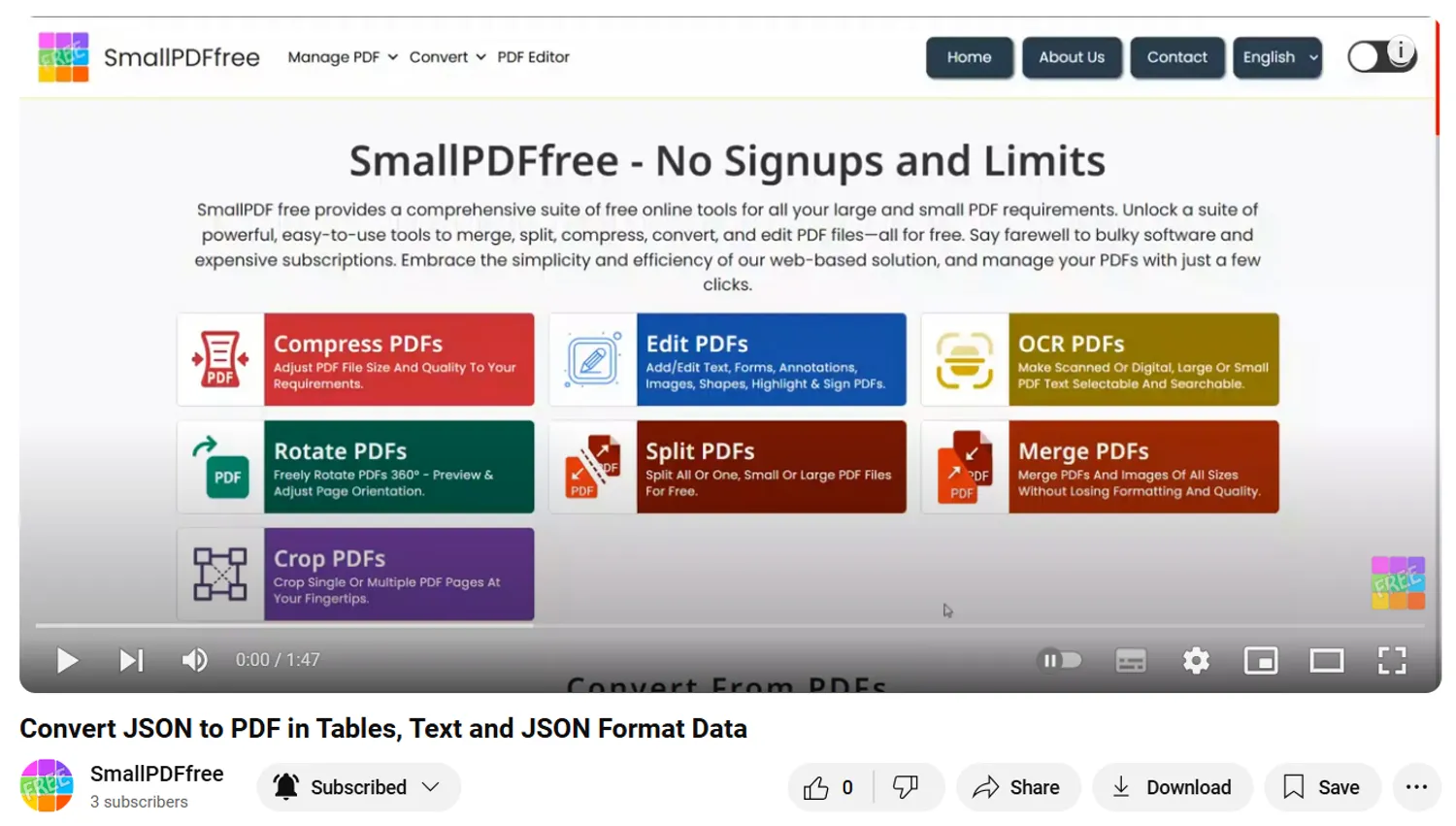
Using SmallPDFFree’s JSON to PDF converter, which is an online web tool that provides the feature to upload a JSON file and then converts it directly into a styled PDF.
2. Using Python for JSON to PDF Conversion
If you’re familiar with programming, Python libraries like ReportLab and PyFPDF can help convert JSON data into a custom PDF.
Here’s an example using PyFPDF:
from fpdf import FPDF
import json
# Load JSON data
data = {
"name": "John Doe",
"age": 30,
"city": "New York"
}
# Convert JSON to a formatted string
json_string = json.dumps(data, indent=4)
# Create a PDF
pdf = FPDF()
pdf.add_page()
pdf.set_font("Arial", size=12)
pdf.multi_cell(0, 10, json_string)
# Save the PDF
pdf.output("formatted_json.pdf")
This script generates a PDF with JSON data formatted nicely.
3. Using Word Processors
You can copy pretty JSON data into a word processor (e.g., Microsoft Word or Google Docs), format it as you want, and save it as a PDF.
How Do You Change the Format of JSON Data?
Sometimes you might have to reformat JSON for one use case or another; like change it into an array or add comments or even rearranging its structure. Here's how to handle those changes:
1. Using VSCode Settings
VSCode lets you personalize JSON formatting with a configuration file. For instance
Add Comments: JSON itself doesn't support comments, but VSCode allows.jsonc (JSON with comments). Create a settings.json file in your project and include:
// This is a comment
"editor.tabSize": 2
}
2. Custom Scripts
You can parse and reformat JSON data by using programming languages like Python or JavaScript. For example, you can use Python's json module:
import json
# Load JSON
data = json.loads('{ "name": "Alice", "age": 25 }')
# Modify structure
data["city"] = "London"
# Save as formatted JSON
formatted_json = json.dumps(data, indent=4)
print(formatted_json)
This code rearranges, changes, and formats JSON data.
How to Format JSON Data in Notepad++?
Notepad++ is a lightweight editor with powerful features for JSON formatting:
Steps:
Download the JSON Viewer plugin using the Plugins Admin.
Open your JSON file and go to Plugins > JSON Viewer > Format JSON.
The data will automatically be formatted with proper indentation.
Notepad++ also enables you to compress JSON data if necessary using the Compact JSON option.
Another Example for converting JSON to PDF:
Best Custom Formatting Tools for JSON
If you’re looking for advanced features like validation, comparison, or editing, here are some top tools:
1. Postman
A popular tool for API testing, Postman also offers JSON formatting and validation.
2. VSCode Extensions
Extensions like Prettier or Beautify can automate JSON formatting in VSCode.
3. JSON Editor Online
JSON Editor Online provides a graphical interface for editing and formatting JSON data.
Advanced Formatting with VSCode
Prettify JSON VSCode Shortcut
Use the shortcut Shift + Alt + F on Windows or Shift + Option + F on Mac to quickly format JSON in VSCode.
Best settings.json for Formatting
Customize your VSCode settings for an optimal JSON formatting experience:
{
"editor.tabSize": 2,
"editor.formatOnSave": true,
"editor.defaultFormatter": "esbenp.prettier-vscode"
}
These settings enable automatic formatting whenever you save a JSON file.
Debugging JSON with Comments
If you are experiencing the error "You don't have an extension for debugging JSON with comments," you'll want to install the JSON Tools extension in VSCode. They work on.jsonc files (JSON with comments).
How Do I Style My JSON Data for PDF Using Custom Formatting Tools?
In styling JSON data for embedding into PDFs,
You will be using Beautifiers. Style your JSON data by making use of applications such as VSCode or Notepad++.
Customize Appearance: Add colors, bold titles, or borders using Python libraries like ReportLab or WeasyPrint.
Ensure Validation: Always validate your JSON before converting it to PDF to avoid errors.
Here’s an example of adding custom styles with Python’s reportlab:
from reportlab.platypus import SimpleDocTemplate, Paragraph
from reportlab.lib.styles import getSampleStyleSheet
import json
# Load JSON data
data = {"name": "John", "age": 30, "city": "New York"}
json_string = json.dumps(data, indent=4)
# Create a PDF with styled JSON
doc = SimpleDocTemplate("styled_json.pdf")
styles = getSampleStyleSheet()
formatted_text = Paragraph(f"""
<pre>
{json_string}
</pre>
""", styles["Code"])
doc.build([formatted_text])
This code will generate a PDF with a neatly formatted JSON block.
Frequently Asked Questions and Related Questions
1. Custom Formatting Tools Online
You can easily format and convert your JSON data online using the following tools:
JSON Formatter, JSONLint, and JSON2PDF.
2. Best settings.json for VSCode
The best configuration of the settings.json in VSCode improves JSON formatting. Here's an example:
{
"editor.formatOnSave": true,
"json.schemas": [
{
"fileMatch": ["package.json"],
"url": "http://json.schemastore.org/package"
]
}
3. VSCode Format JSON on Mac
Use Shift + Option + F to format JSON on Mac.
Conclusion
Styling JSON data for use in PDFs requires formatting, editing, and converting JSON files using tools and techniques. By using editors such as VSCode and Notepad++, online tools, and programming libraries, you can produce professional output suited to your requirements.
This tutorial guides you from making JSON beautiful, to exporting JSON to PDF or editing the appearance, which has been covered so you do all this in a rather efficient and easy manner. Give your workflow a few goes using the tools and tips suggested, and before long you will be mastering JSON formatting.