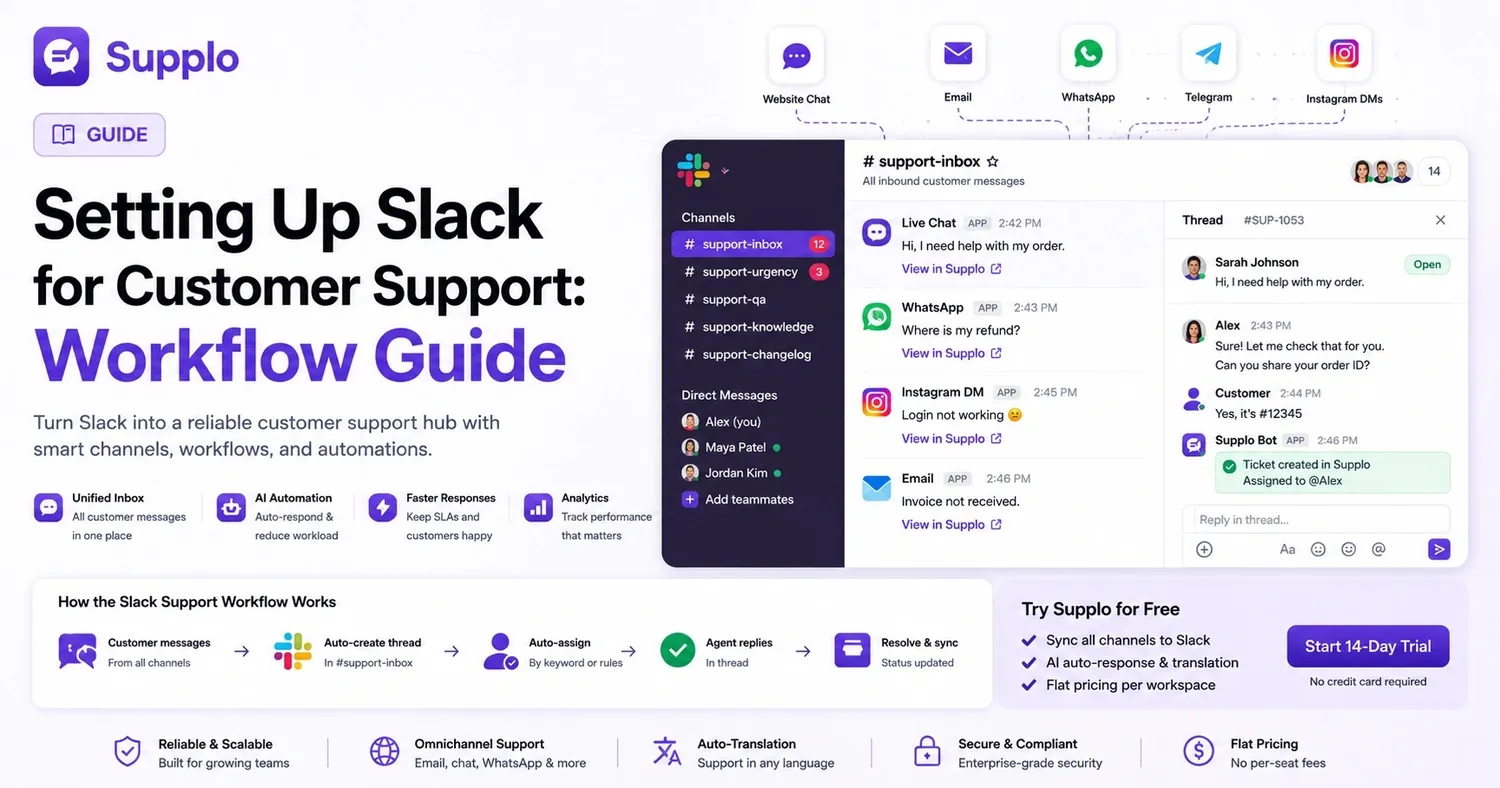
Slack serves as a robust internal communication platform for teams, but it wasn't built with customer support in mind. Truthfully, it's a chat application, not a complete ticketing system. If you want to use Slack effectively for customer-facing interactions, you'll need to integrate automation and various tools. This guide demonstrates how to establish a dependable Slack workflow for customer support, helping you maintain quick response times and high customer satisfaction. We'll cover everything from structuring your channels to implementing automation, ensuring you get it right from the start.
Quick Answers
- Slack performs best for customer support when combined with a shared team inbox that automatically routes messages and tracks SLA compliance. This crucial component is often overlooked by many teams.
- Utilize specific support channels, handy slash commands, and workflow automation to keep Slack from becoming overwhelming. A chaotic #general channel can quickly kill productivity.
- For dependable scaling, link Slack with a platform that handles ticket merging, automatic translation, and omnichannel synchronization. Don't wait until you're swamped with messages.
- Avoid relying solely on Slack for high-volume support; incorporate a robust routing and analytics layer to prevent dropped tickets. Your customers deserve better than a missed message.
Compliance Line:
"supplo is not affiliated with any app or website. Please follow each app's terms and local regulations."
Why Slack Isn't Ready-Made for Support (and How to Fix It)
Slack was designed for internal team collaboration, not for directly supporting customers. By default, it lacks key features like a shared inbox, ticket tracking, and mechanisms for enforcing service level agreements (SLAs). To use Slack effectively for customer support, you must bridge these gaps with automation or a specialized integration layer.
Here’s where issues typically arise:
- Without a native ticket system, customer conversations can easily get lost in busy channels. Trying to locate an old customer message can be a real headache.
- Manual message triage, in the absence of automatic assignment logic, often leads to ignored messages. Someone always assumes another team member will handle it.
- Visibility confined to specific channels creates information silos, making it difficult to maintain consistent multi-channel support. Your email queue and Slack discussions can quickly become disconnected.
The solution? Instead of trying to force Slack into a role it wasn't designed for, integrate a platform that manages the heavy lifting. supplo's inbox integration does exactly this by syncing every customer message into Slack threads while expertly handling ticket quality and assignment rules in the background.
Structuring Your Slack Workspace for Stellar Customer Service
Begin by setting up dedicated channels, such as #support-triage, #support-urgent, #support-qa, and #support-knowledge. Limit posting permissions to minimize distractions, and use channel topics to designate who's responsible for responses during each shift.
Here’s what truly works:
- Separate inbound customer channels from internal team channels to ensure customer messages remain prominent. Your team shouldn't have to sift through general chatter to find and manage tickets.
- Leverage Slack's role-based permissions to prevent non-support staff from responding to customer inquiries. You definitely don't want a well-meaning engineer accidentally addressing a billing concern.
- Create a private #support-escalations channel for sensitive or stalled tickets. Keep this channel exclusive; too many eyes can hinder quick resolutions.
Pro tip: Include current shift coverage and escalation contacts in your channel topics. When someone joins the channel, they immediately know who's in charge.
Essential Slack Channels for Customer Support Teams
A dependable Slack support setup typically requires at least four channels: a central #support-inbox for all incoming customer messages, a #support-urgency channel for critical alerts, a #support-knowledge channel for quick information retrieval, and a #support-changelog to keep track of workflow updates.
Let's break down the purpose of each channel:
- support-inbox: This single channel consolidates all customer messages, with replies confined to threads to keep the main feed clear. It acts as your team's central hub for all incoming requests.
- support-urgency: Pin this channel to the top of the sidebar. It's strictly for high-priority tickets. Maintain its importance; if everything is marked urgent, nothing truly is.
- support-knowledge: This is a reference-only channel. Pin links here to your knowledge base or supplo's learning AI. Agents can access answers without interrupting colleagues.
Don't overcomplicate things. Start with a maximum of three channels and add more only as your volume grows. I've seen teams launch with a dozen channels, only to abandon half of them within weeks.
Automating Slack Customer Support Without a Developer
Use Slack's Workflow Builder or a no-code integration like supplo to automatically create threads from incoming messages, assign them by keywords or sender domains, and post automated ticket updates to a designated triage channel. Avoid over-engineering from the start; begin with one trigger (e.g., the keyword "urgent") and a single action.
Here's an effective and straightforward automation setup:
- A new message in #support-inbox automatically triggers thread creation and a Slack reminder. This eliminates the "I thought you were handling that" scenarios.
- Workflow Builder can assign specific team members based on the message category (e.g., billing, technical, account). Messages containing "refund" go to billing, while "error" goes to technical support.
- If a message remains unassigned for 15 minutes, it automatically escalates to a manager channel. This helps catch potential issues before they become major problems.
Test Slack support for free with supplo. Connect your live chat widget to Slack and see auto-threads in action. No credit card is required; start your 14-day trial at https://supplo.io.
Using Slack for Live Chat Support: Commands, Threads & Real-Time Triage
When a customer sends a message through your website's live chat, route it directly to a Slack channel as a thread. Agents can then use specific slash commands, like /resolve [ticket-id], to close the case, automatically updating your team's inbox. This approach maintains a fast support flow without requiring agents to leave Slack.
Here’s the workflow that teams genuinely appreciate:
- Slash commands such as
/assign @agentprevent duplicate work. When you claim a ticket, everyone immediately knows it’s yours. - Threads keep each conversation contained, empowering agents to manage multiple chats simultaneously. No more confusion over who said what.
- Add a "typing" indicator via webhook to help manage customer expectations during response delays. This small visual cue significantly improves customer satisfaction.
Best Practices for Slack Customer Support: Response Times, Tone & Escalation
Establish a clear response time target (e.g., under 5 minutes for priority messages) using Slack's reminder bot or a dedicated SLA tracker. Maintain a conversational yet deliberate tone, avoid technical jargon, and always confirm the customer's issue before offering a solution.
Practical tips that truly make a difference:
- Utilize Slack's "Set a reminder" feature to prompt yourself if you don't receive a reply within 2 minutes. It's a free, built-in tool.
- Opt for empathetic language like "we understand" instead of generic, robotic thank-you scripts. Customers can easily detect impersonal responses.
- A clear escalation protocol is vital: if a Slack thread exceeds four messages, automatically create a ticket in your support inbox. Lengthy chat threads can quickly lead to confusion.
- A well-maintained knowledge base can significantly reduce the need for live support interactions, promoting self-service.
Where Slack Falls Short (and What to Add for Robust Support)
Slack lacks crucial features like unified inbox merging, automatic translation, and comprehensive analytics for support volume. Without these, your team operates without essential insights. You need a tool that can consolidate messages from Slack and other channels (like email, WhatsApp, and Instagram DMs) into a single, threaded view. This ensures you won't miss tickets, even when Slack is offline or particularly busy.
Here are the most significant gaps you'll encounter:
- Without built-in reporting, you can't accurately track key metrics like first-response time or resolution rate. How can you tell if your service is truly improving?
- Supporting multilingual customers in Slack becomes slow and manual without automatic translation. Your French-speaking customer might wait while someone searches for Google Translate.
- Slack's free-tier search functionality is limited, making it difficult to review past tickets. Good luck trying to find a conversation from several months ago.
Integrating a Shared Team Inbox with Slack for True Omnichannel Support
The most reliable way to manage customer support with Slack is to integrate it with a shared team inbox. This system syncs every customer communication channel—email, live chat, WhatsApp, Instagram DMs, and Telegram—into one unified, threaded view. Your team can then respond directly from Slack while maintaining a single, consistent record for all conversations.
Here's why this approach genuinely works:
- A unified inbox eliminates the need to switch between Slack and separate channel apps, preventing tab overload.
- AI-powered automations can handle common questions automatically without leaving Slack. Your agents can focus on complex issues instead of answering "what are your hours?"
- Thread-based merging keeps conversation context intact, even if it spans multiple channels. If a customer starts on WhatsApp and continues via email, you'll see it all in one cohesive thread.
- A shared team inbox ensures that no message ever slips through the cracks.
- Automate common responses effectively with supplo's AI agent.
- Seamlessly integrate your email support directly into Slack for better management.
- Provide customer support effortlessly on WhatsApp right from your Slack channels.
- Leverage Telegram for customer support, a rapidly growing channel.
- Engage with your customers where they are – manage Instagram DMs directly from Slack.
Measuring Effective Slack Support KPIs That Truly Matter
Monitor key performance indicators like first-response time, resolution rate per agent, and ticket volume by channel. Relying solely on Slack's built-in analytics will cause you to miss crucial channel-specific details. Instead, use a lightweight CRM or a dedicated support dashboard to cross-reference Slack response data with customer satisfaction metrics.
Numbers worth tracking closely:
- Aim for a first-response time under 60 seconds for high-priority Slack threads; this is the benchmark for excellence.
- Target a ticket closure rate above 80% within 24 hours. If your team is falling below this, your workflow likely needs optimization.
- Track channel-specific volume to identify which customer contact points are placing the most strain on Slack. Instagram DMs, for example, might be a bigger bottleneck than email.
When to Move Beyond Slack: Scaling Support Without Chaos
When your team is handling more than 50 support conversations daily, Slack's channel-centric system can severely hinder productivity. The answer isn't to abandon Slack, but to integrate it with a specialized support platform. This platform should manage ticket routing, automated responses, and omnichannel synchronization. This setup allows Slack to remain your team's interface without becoming the single point of failure.
Here’s a practical transition plan:
- Use Slack as the front-end user interface for your support team, but not as the primary support database. The true source of truth should reside in the underlying platform.
- Shift from manual Slack handoffs to automated ticket routing that includes SLA tracking. Stop relying on "@here" mentions to get attention.
- Keep Slack for internal communications, while your dedicated support platform handles the complex tasks of ticket management. This keeps Slack clean and ensures tickets are processed efficiently.
- For scaling teams,
supplooffers straightforward pricing plans per workspace, not per seat. Explore our various pricing options.
Key Takeaways
- Slack is most effective for customer support when paired with a shared team inbox that automates message routing and tracks service level agreements (SLAs). This forms the core of a successful system.
- Implement dedicated support channels, use handy slash commands, and set up workflow automation to prevent Slack from becoming overwhelming. A well-structured system promotes clear communication.
- For dependable scalability, integrate Slack with a platform that excels in ticket merging, automatic translation, and omnichannel synchronization. Proactive integration prevents your team from getting swamped.
- Avoid relying on Slack alone for high-volume support requests; add a robust routing and analytics layer to prevent dropped tickets. Your customers will appreciate the consistent support.
FAQ
Can Slack messages be considered legal records for customer support?
Yes, they can, but you must enable Slack's compliance exports and message retention settings. Slack keeps messages indefinitely unless you set a custom retention policy. For regulatory compliance, ensure your Slack export includes deleted messages and a complete channel history.
Why do Slack support workflows struggle under high message volumes?
Slack lacks built-in features for ticket queuing and automatic assignment. Without these, a high volume of messages can quickly lead to pile-ups in channels, orphaned threads, and unacceptably long customer wait times. The solution is to integrate a routing layer that automatically assigns messages before they even reach Slack.
Should I use one main support channel or several Slack channels?
Start with a single, unified support channel. Only introduce role-specific channels (for billing, urgent issues, or technical problems) when your daily ticket volume exceeds 30. Too many channels too early can cause confusion and slow down response times.
What's the most effective way to escalate a stalled support thread in Slack?
Implement a custom Slack slash command, such as /escalate, that automatically moves the thread to a private #escalations channel and alerts a manager. Avoid cross-posting to multiple channels, as this can disrupt thread continuity.
Is Slack secure enough for handling customer payment data?
No, absolutely not. You should never send sensitive information like credit card numbers, crypto wallet addresses, or other payment details through Slack, even in ephemeral messages. Instead, use a dedicated payment link generator or a tokenized payment form.
How can I prevent Slack from getting too noisy during peak support hours?
Schedule "Do Not Disturb" times for non-urgent channels, encourage agents to use Slack's "focus mode," and direct all low-priority queries to an automated AI agent before they reach Slack. This strategy helps your team concentrate on human-handled tickets.
What happens if Slack goes down during a surge in support activity?
Without a backup plan, all communication could be lost. Always run Slack in conjunction with a shared team inbox that functions independently of Slack's uptime. This ensures you can seamlessly switch channels without losing crucial context.
Compliance line: supplo is not affiliated with any app or website. Please follow each app's terms and local regulations.