Establishing a secure and effective connection is essential for function such as remote management and development when controlling a Raspberry Pi from a Mac. While PuTTY is a well-known SSH client for Windows, Mac users can obtain the same abilities using the native Terminal program.
Also explore how to use SFTP to upload file on Oracle server secrely.
This method enables users to remotely access the Raspberry Pi's command-line interface, allowing for smooth interaction without the need for direct physical contact.
Enable SSH on Mac:
Make sure SSH is enabled on your Raspberry Pi. You can do this by using the desktop to access the Raspberry Pi setup or by typing the following command in the terminal:
sudo raspi-config
Then, navigate to Interfacing Options>SSH and enable it.
Determine the IP address of the Raspberry Pi:
Determine your Raspberry Pi's IP address. You can use the ifconfig command in the terminal on the Raspberry Pi or log in to your router's admin interface to find the connected devices.
Steps to connect Raspberry pi form Mac:-
Install PuTTY on Mac:
You can install PuTTY on Mac by using the Homebrew method. But for this you have to download homebrew on Mac, after this run command
brew install putty
Open the putty by running command on terminal:
putty
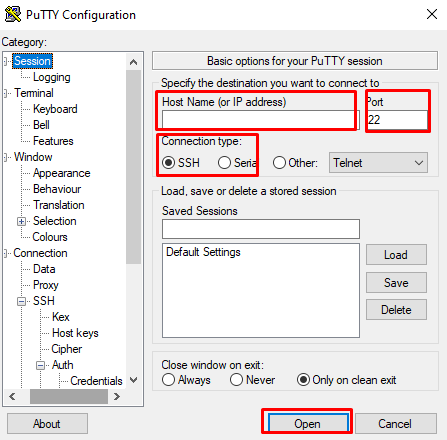
In PuTTY terminal window, enter the IP address and username of the Raspberry Pi in the Hostname section.
Select the connection to SSH and port to 22.
Click on Open to establish the connection.
Now, you are successfully connected to Raspberry Pi from Mac by using PuTTY to perform and manage the function.