
In today's fast-paced world, having a seamless connection between your devices is crucial. Whether you're looking to share audio on a Mac, or wondering how to connect AirPods to laptop, our comprehensive guide will walk you through the process step by step. AirPods are renowned for their superior sound quality and ease of use, and connecting them to your laptop can enhance your listening experience significantly.
Connecting AirPods to Different Laptops
How to Connect AirPods to a Dell Laptop
Connecting AirPods to a Dell laptop is a straightforward process. Here's how you can do it:
- Enable Bluetooth on Your Dell Laptop: Go to the Windows settings by pressing
Win + I, then navigate to "Devices" and turn on Bluetooth. - Put Your AirPods in Pairing Mode: Open the AirPods case, press and hold the button on the back until the LED light starts flashing white.
- Pair the AirPods with Your Laptop: On your Dell laptop, click "Add Bluetooth or other device" and select "Bluetooth". Your AirPods should appear on the list of available devices. Click on them to connect.
How to Connect AirPods to an HP Laptop
If you're using an HP laptop, the steps are quite similar:
- Activate Bluetooth: Open the settings by pressing
Win + I, select "Devices", and ensure Bluetooth is turned on. - Make AirPods Discoverable: With your AirPods in the case, press and hold the setup button until the LED flashes white.
- Connect Your AirPods: In the Bluetooth settings on your HP laptop, click "Add Bluetooth or other device", choose "Bluetooth", and select your AirPods from the list.
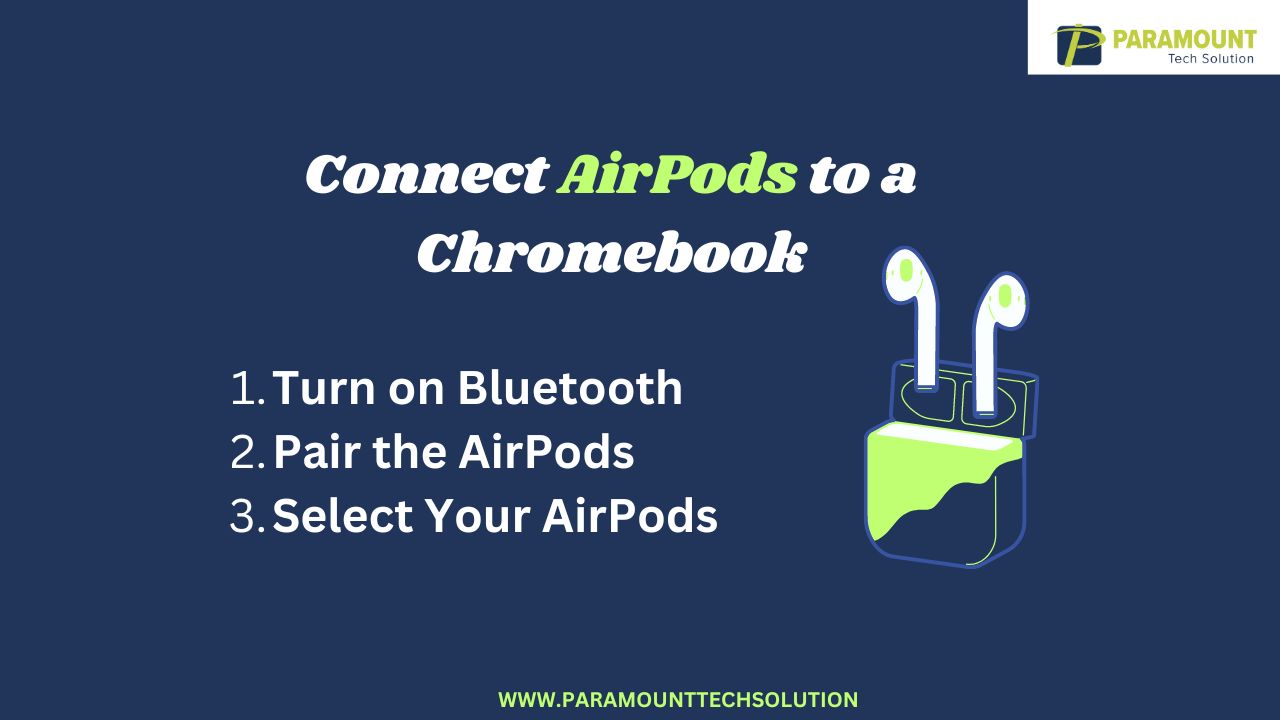
How to Connect AirPods to a Chromebook
Chromebooks have their own operating system, but connecting AirPods to a Chromebook is still simple:
- Turn on Bluetooth: Click on the status area in the bottom right corner of your Chromebook, and click the Bluetooth icon to turn it on.
- Pair the AirPods: Open the AirPods case, press and hold the setup button until the LED light flashes white.
- Select Your AirPods: Your Chromebook should display your AirPods in the list of available Bluetooth devices. Click on them to connect.
How to Connect AirPods to a Lenovo Laptop
For Lenovo laptops, the procedure is just as easy:
- Enable Bluetooth: Press
Win + Ito open settings, then go to "Devices" and turn on Bluetooth. - Pair the AirPods: With your AirPods in the charging case, press and hold the setup button until the LED flashes white.
- Connect via Bluetooth: In the Bluetooth settings on your Lenovo laptop, click "Add Bluetooth or other device", choose "Bluetooth", and select your AirPods from the list.
Connecting AirPods to Windows Laptops
How to Connect AirPods to Windows Laptop
Connecting AirPods to a Windows laptop involves the following steps:
- Turn on Bluetooth: Open the settings by pressing
Win + I, select "Devices", and enable Bluetooth. - Pair the AirPods: Open the AirPods case, press and hold the setup button until the LED light flashes white.
- Select Your AirPods: On your Windows laptop, click "Add Bluetooth or other device", select "Bluetooth", and choose your AirPods from the list of available devices.
AirPods Bluetooth Shortcuts for Windows
Using AirPods Bluetooth shortcuts for Windows can save time:
- Quick Access Bluetooth Settings: Press
Win + Ato open the action center, then click on the Bluetooth icon to quickly access Bluetooth settings. - Pair New Device Shortcut: Press
Win + Kto directly open the connect panel and search for new Bluetooth devices.
How to Connect AirPods Max to Laptop
The AirPods Max follow a similar connection process with a few specifics:
- Activate Bluetooth: Ensure Bluetooth is enabled on your laptop.
- Pair the AirPods Max: Press and hold the noise control button on your AirPods Max until the status light flashes white.
- Connect: In the Bluetooth settings of your laptop, find and select your AirPods Max to pair and connect.
Additional Tips for Connecting AirPods to Laptops
Making AirPods Discoverable
To ensure your AirPods are discoverable:
- Open the Case: Keep the AirPods inside and open the lid.
- Press the Setup Button: Hold the button on the back of the case until the LED starts flashing white.
Can I Connect AirPods to Laptop?
Absolutely, you can connect AirPods to any laptop that supports Bluetooth. The process remains consistent across various brands and operating systems.
How to Pair AirPods with Laptop
When pairing AirPods with a laptop, always ensure:
- Proximity: Keep your AirPods close to your laptop.
- Battery Levels: Ensure both your AirPods and laptop have sufficient battery.
- No Interference: Avoid interference from other Bluetooth devices.
Troubleshooting Common Issues
AirPods Not Connecting
If your AirPods are not connecting:
- Reset Your AirPods: Put them back in the case, close the lid for 30 seconds, then open the lid and press the setup button until the LED flashes amber, then white.
- Forget Device: On your laptop, remove the AirPods from the list of paired devices and attempt to reconnect.
- Check for Updates: Ensure both your laptop’s OS and Bluetooth drivers are updated.
Audio Quality Issues
For superior sound quality:
- Check Bluetooth Interference: Move away from other wireless devices.
- Update Firmware: Ensure your AirPods firmware is up to date.
- Adjust Audio Settings: Check the audio output settings on your laptop.
Conclusion
Connecting your AirPods to your laptop can significantly enhance your audio experience, whether you're using a Dell, HP, Chromebook, Lenovo, or any Windows laptop. By following the steps outlined above, you can easily enjoy superior sound quality and seamless connectivity.