An Email Header is metadata that accompanies every email and contains detailed information, such as the sender, receiver, route, time, and more. Mailbox providers use email headers to authenticate the email senders and properly allocate an email in the inbox.
Information in the Email Metadata is automatically generated in accordance with how the email was built and sent. Even though there is a standard to what Email Metadata should include, there is no limit to what an email server could add to it.
How to view Email Headers?
The instructions below will direct you to the Email Headers’ location. Depending on your mailbox provider, the instructions will slightly differ, yet the Email Headers’ metadata readability remains the same across all emailing platforms.
Gmail:
- Locate a three-dot icon on the top-right corner of the email
- Select Show Original
Apple:
- Select View on the panel in the top-left corner
- Select Message and then All Headers
Outlook:
- Open the email and select Properties from the File menu
- Scroll down and locate Email Headers in the Internet Headers box
Yahoo:
- Select More on the panel above the email
- Select View Full Header
Webmail:
- Select Show Source from the More menu
Hotmail:
- Select email and right-click for a drop-down
- Select View Message Source
Thunderbird:
- Open email, click on View
- Select Message Source
Email Headers list and how to analyze them
Email Headers format is read in fields. Each field has a corresponding name, followed by a separator character and a value identifier. The main fields located in the email message header are the from, to, subject, and date. The header also contains various technical details, such as return-path, reply-to, message-id, and more, out of which only date and from are mandatory. Every email header is unique, it can contain more specifics.
Informational Email Headers
From indicates the sender’s information, such as the address.
From: Mailtrap <mailtrap@mailtrap.io>
To displays the primary and secondary (CC, BCC) recipients’ email address and optional names.
To: Grigori Monaselidze <grigori.monaselidze@railsware.com>
Delivered-To displays the recipient’s name and address, as well as other addresses present in the CC and BCC.
Deliver-To displays the address of the recipient who received the delivery. Deliver-To header is added during the event of the delivery.
Delivered-To: recipient_email@railsware.com
Subject refers to the title the sender has indicated in the subject line of the email.
Subject: email_subject_name
Reply-To is an optional field, containing the address to which a recipient responds to.
Reply-To: Sender Name <sender_email@railsware.com>
Content-Type field indicates whether the format of an email was HTML, TXT, or any other option.
Content-Type: text/plain; or Content-Type: multipart/alternative;
Technical Email Headers
Return-Path is added automatically by the recipient’s email server and records the initial sender during the SMTP session. Any bounces that occurred during the SMTP session return to the Return-Path address.
Return-Path: <sender_email@railsware.com>
Received is added automatically after an SMTP server accepts an email. These headers indicate all servers through which the email has passed before reaching its final destination.
<code>d: from mta-81-96.sparkpostmail.com (mta-81-96.sparkpostmail.com. [192.174.81.96])by mx.google.com with ESMTPS id ji12-20020a170903324c00b0016163a204cfsi12846642plb.334.2022.06.04.10.17.47for <grigori.monaselidze@railsware.com><span style="background-color: inherit;font-family: Menlo, Consolas, monaco, monospace;font-size: inherit"> </span>(version=TLS1_2 cipher=ECDHE-ECDSA-AES128-GCM-SHA256 bits=128/128);Sat, 00 Jun 2022 00:00:00 -0700 (PDT)Received: by 2002:a05:7300:7951:b0:62:3ec1:8434 with SMTP id d17csp5155772dyi;Sat, 00 Jun 2022 00:00:00 -0700 (PDT)Message-ID is a unique identifier, generated automatically to prevent multiple deliveries. It includes various (around 50) letters and numbers.
<XYXYXYXYXYXYXYXYXYXYXYXYXYXYXYXYXYXYXYXYXYXYXYXYXY@example.railsware.com>
Multipurpose Internet Mail Extensions or MIME allows various media attachments to the email. It is recommended to use MIME-Version: 1.0 when sending out an email containing one of the following:
- Non-text attachments
- Message bodies with multiple parts
- Text in character sets other than ASCII
- Header information in non-ASCII character sets
Security Email Headers
DKIM-Signature or Domain Keys Identified Mail (DKIM) is another authentication method used to confirm that the email was authorized by the owner of the domain. The email is signed with a digital signature, which can be verified by checking the sender’s public key in the DNS records of the sender’s domain. For further details, our article explains DKIM entirely.
<code>DKIM-Signature: v=1; a=rsa-sha256; c=relaxed/relaxed;

d=gmail.com; s=20161025;h=from:to:subject:date:message-id:mime-version:thread-index:content-language;bh=fZjxO4TdlsVYWA6YIXoMF8AS+FOsm2lV1tfhDvYZNQo=;b=cMSUNWMGENp4jXuFTInBnZi6Sq2ZcjhBNA0ht8rSEt1SR8b0gGmiiZZ4l52lGSCum5lRtmPPtt/tgnqubiLBBW2fatlarhjo6qRp7FRE9IsE6XBIl6muTGS/kUDwEm9NGXjQRpnxmHp4/JKDKrYHg8cKsm+yr3k17hNXHITIrb9VAh2CtEKpAxSYN3MsC4QplXdnLArQjuU3jAnJf0lLZwZcygBbZSY7ENEAtHSbHpt6LLeQKlzosYARoakAH3j8EaAAAu1TfyAYE4+u7ENqUzddifO6Qty3E2I4Soq00SbOO+e64WIUZ0gxoARQqeuAN7H/jaOkC4t5mhWmkbaEFA==After a server verifies authentication, it can save the results in this field for consumption by downstream agents.
SPF or Sender Policy Framework is an authentication method used by senders to specify hosts that are allowed to send an email on behalf of the domain. MTA checks the sender’s DNS records to confirm that the email received from a domain is sent by a host which is listed in the sender’s DNS records. Refer to our article to discover more about SPF and how to set it.
Example:
spf=pass (google.com: domain of ndr-ff163eaa-da92-11ec-9b2f-0a58a9feac02@s6uvshhpwrq3uiwjnvdw5ksc.mailtrap.io designates 35.171.128.124 as permitted sender) smtp.mailfrom=ndr-ff163eaa-da92-11ec-9b2f-0a58a9feac02@s6uvshhpwrq3uiwjnvdw5ksc.mailtrap.ioYou can perform all these checks from your Mailtrap inbox. Subject, From, and To headers are available once you open the message. To view more, click on Show Headers or head directly to the Tech Tab.
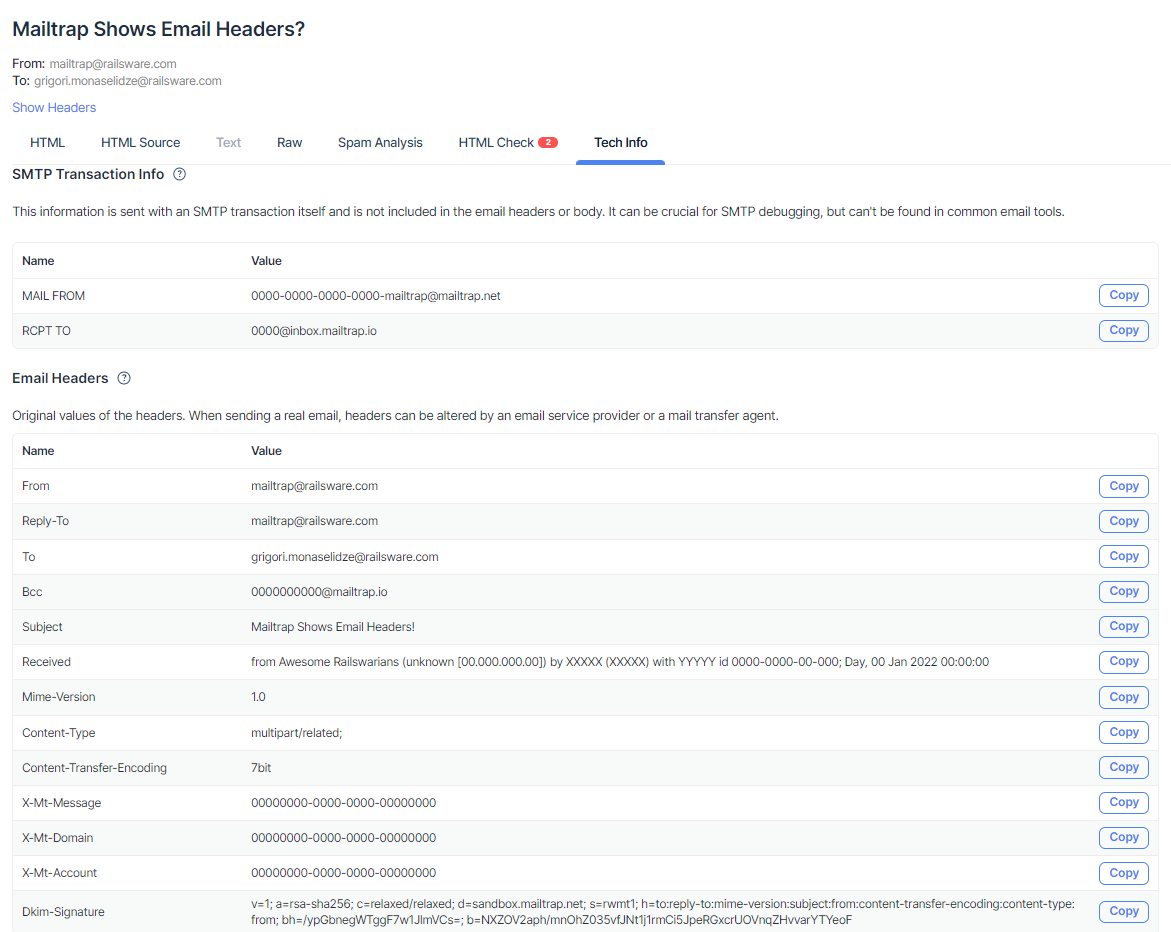
Or view more email metadata details in the RAW section.
To learn about tools to work with email headers and why are they important, visit this mailtrap.io blog post on email headers.