Creating a streamlined synchronization between Salesforce and Outlook is crucial for automating your sales activities. With Salesforce for Outlook, you enable Salesforce data to be updated directly from Outlook and vice versa.
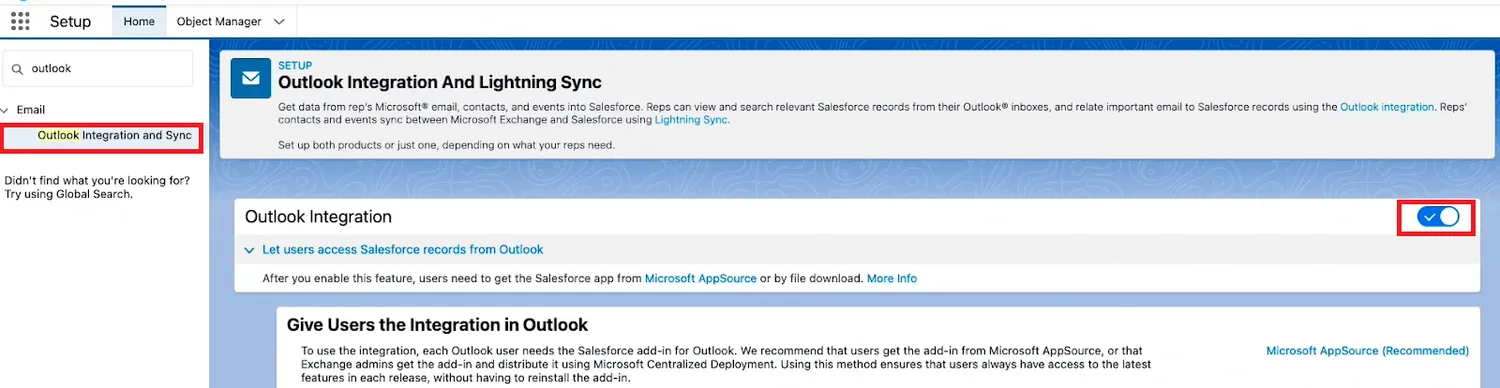
1.On your “Setup” page, search for “Outlook Integration and Sync” in “Quick Find” and enable access permission.
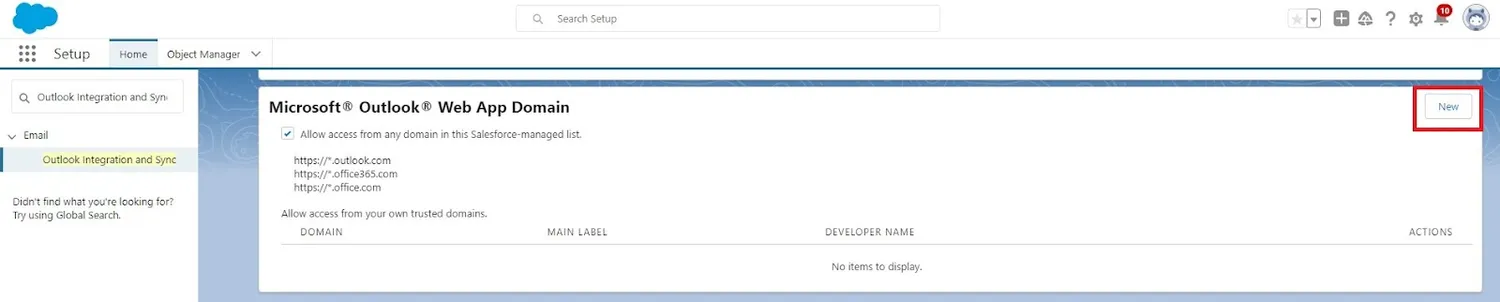
2.Register your corporate domain in the Microsoft Outlook Web App Domain area.
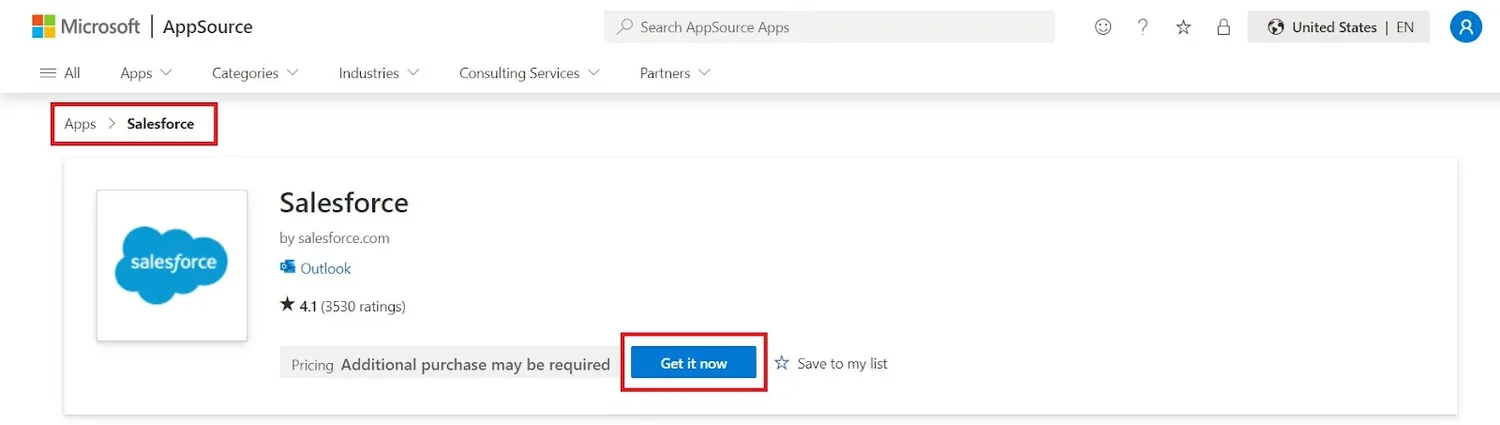
3.Download the Salesforce add-on from Microsoft AppSource.
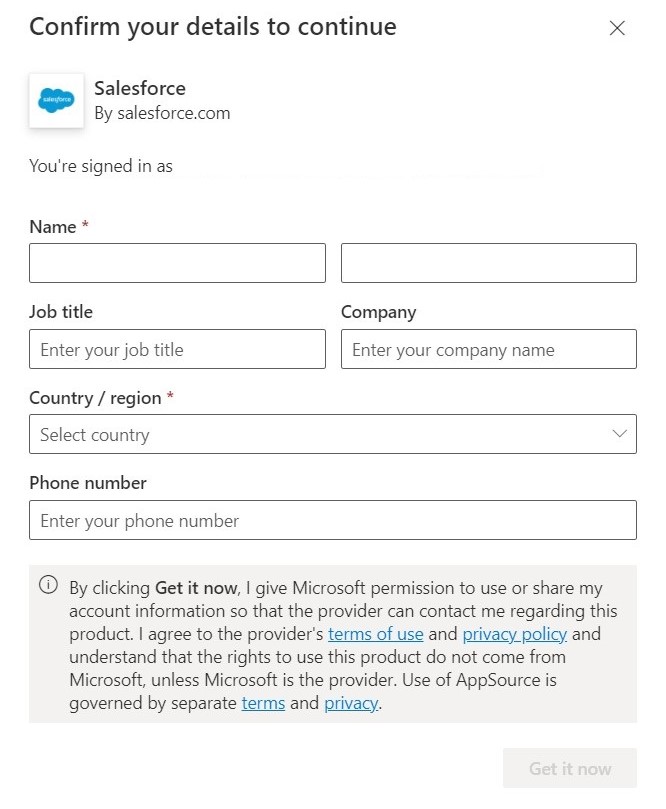
4.Log in to your Microsoft 365 account and fill out the pop-up form with your information.
5.Select “Salesforce” under the three dots from a new email window and authorize the connection with your Salesforce account.
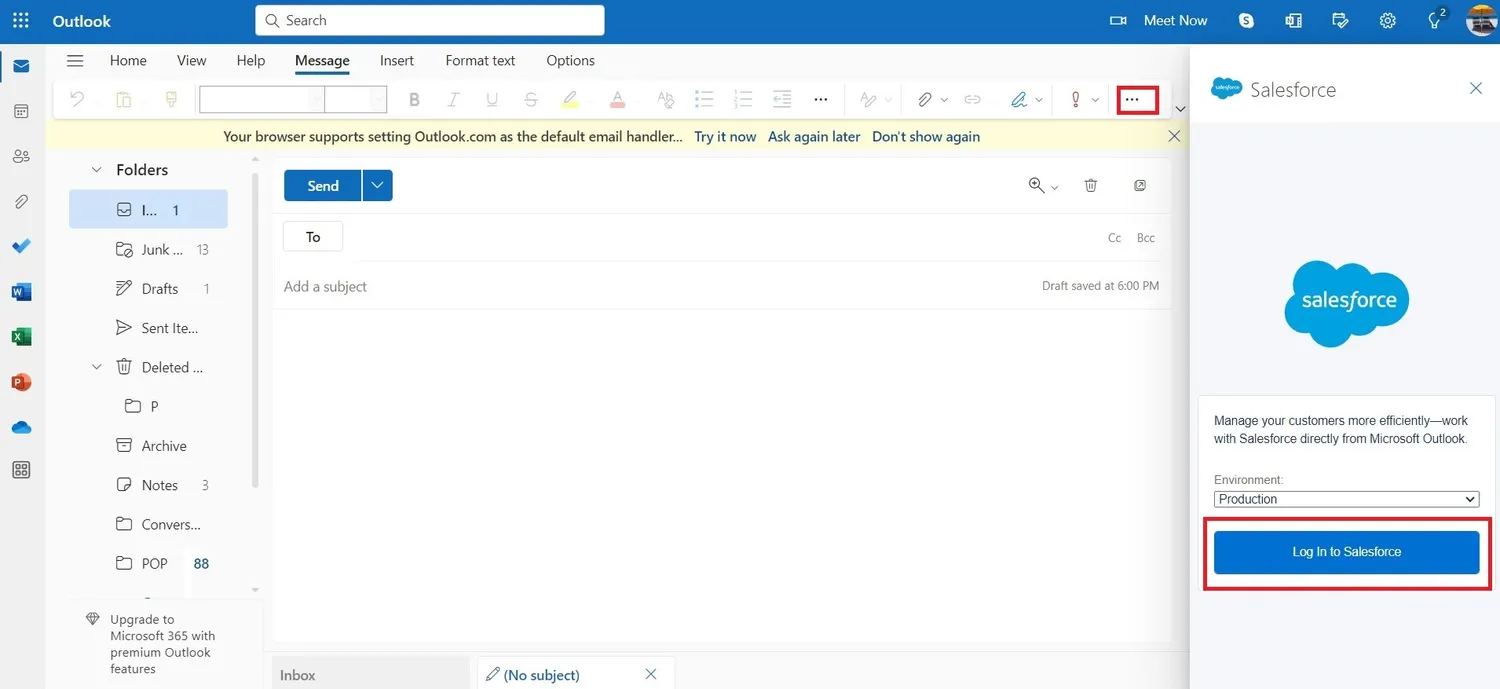
6.Ensure the “Enhanced Email with Outlook” is activated on the “Outlook Integration and Sync” page. This will allow the system to log emails as email messages and Salesforce tasks.
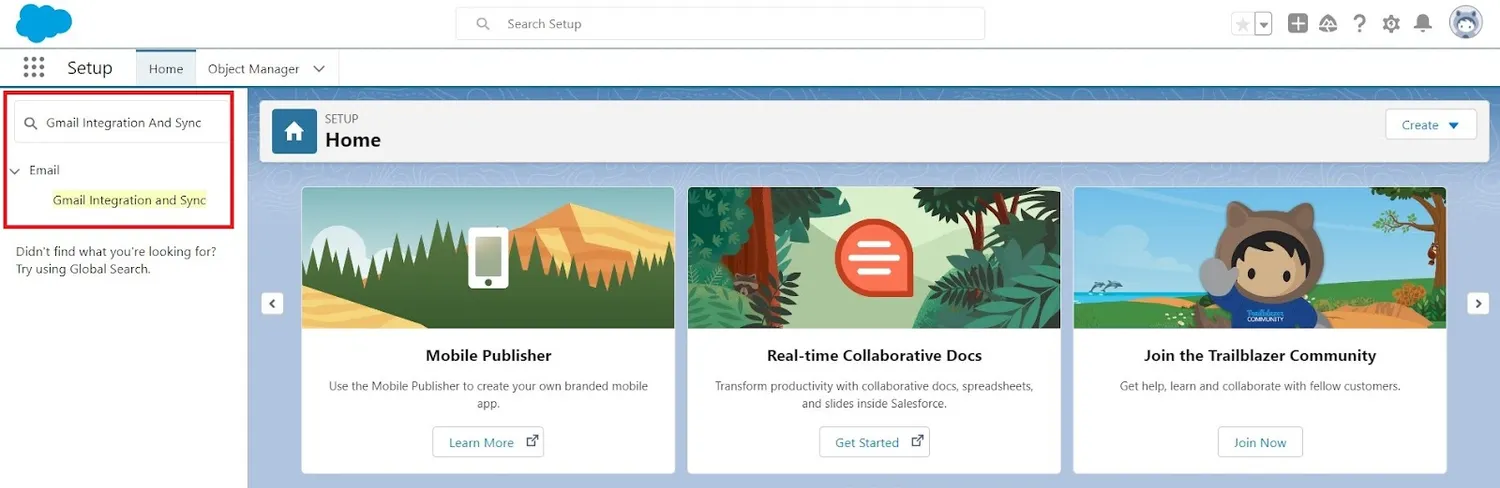
Note: The step-by-step integration process can vary slightly based on the Salesforce edition and version you use, such as Salesforce Classic, Salesforce Lightning Experience, etc.
Upon finalizing the integration between Salesforce and Outlook, an optional but beneficial next step is setting up Einstein Activity Capture (EAC). EAC is a tool that provides real-time synchronization of activities across both platforms, enhancing the scope of integration. An authentication method is selected within Salesforce settings to implement EAC, granting Salesforce access to Microsoft Exchange Office 365. The integration concludes by designating the relevant Users and Profiles and adjusting activity-sharing settings.
Furthermore, it’s strongly suggested to explore more tools on the Salesforce AppExchange enterprise cloud marketplace for additional features and extended capabilities.
Limitations of Salesforce Outlook Integration
Although Salesforce Outlook email integration can vastly enhance your CRM processes, it’s important to know the limitations.
Setup Process: The setup process can be a little complex when dealing with more than one user. Salesforce add-in must be installed in each sales rep’s Microsoft Outlook. This can be achieved either by downloading the add-in from Microsoft AppSource or by Exchange admins distributing it using Microsoft Centralized Deployment. If security protocols prevent access to Microsoft AppSource, an installation file from the Outlook Integration must be used.
Restricted Synchronization Options: The integration does not update manually added calendar events following subsequent activity. Also, it does not support task sync, thereby preventing Outlook tasks from being linked to relevant Salesforce records. Additionally, syncing of custom fields is not available (Not the case with (EAC).
Reporting issues: Data captured by EAC is not directly reportable via Salesforce reports and has limited customization options for data capturing.
Risk of Data Loss: Deactivation of EAC will result in all captured activities being erased from the Salesforce activity timeline.
Syncing Delays: Following setup, EAC may take up to 24 hours to add emails and events to the related Salesforce records.
Lastly, Salesforce plans to retire Salesforce for Outlook by June 2024 due to its dependence on the now-unsupported Internet Explorer 11. Users are advised to transition to Outlook Integration and Einstein Activity Capture (EAC) to sustain and improve their Salesforce functionality within Outlook.
Thanks for reading our guide on integrating Salesforce and Outlook. If you’d like to discover Salesforce Gmail integration and Mailtrap for Salesforce, follow this link: https://mailtrap.io/blog/salesforce-email-integration/