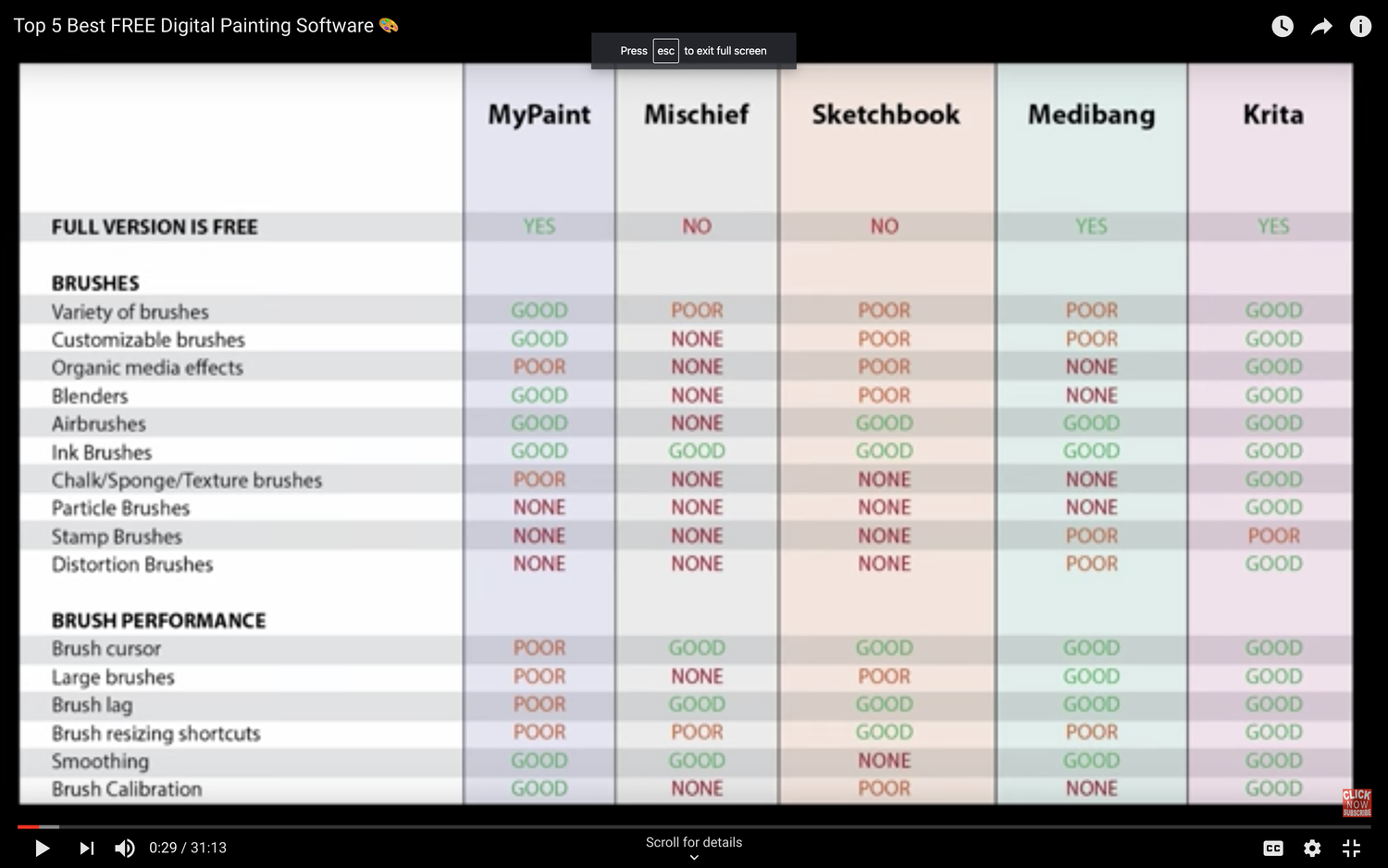
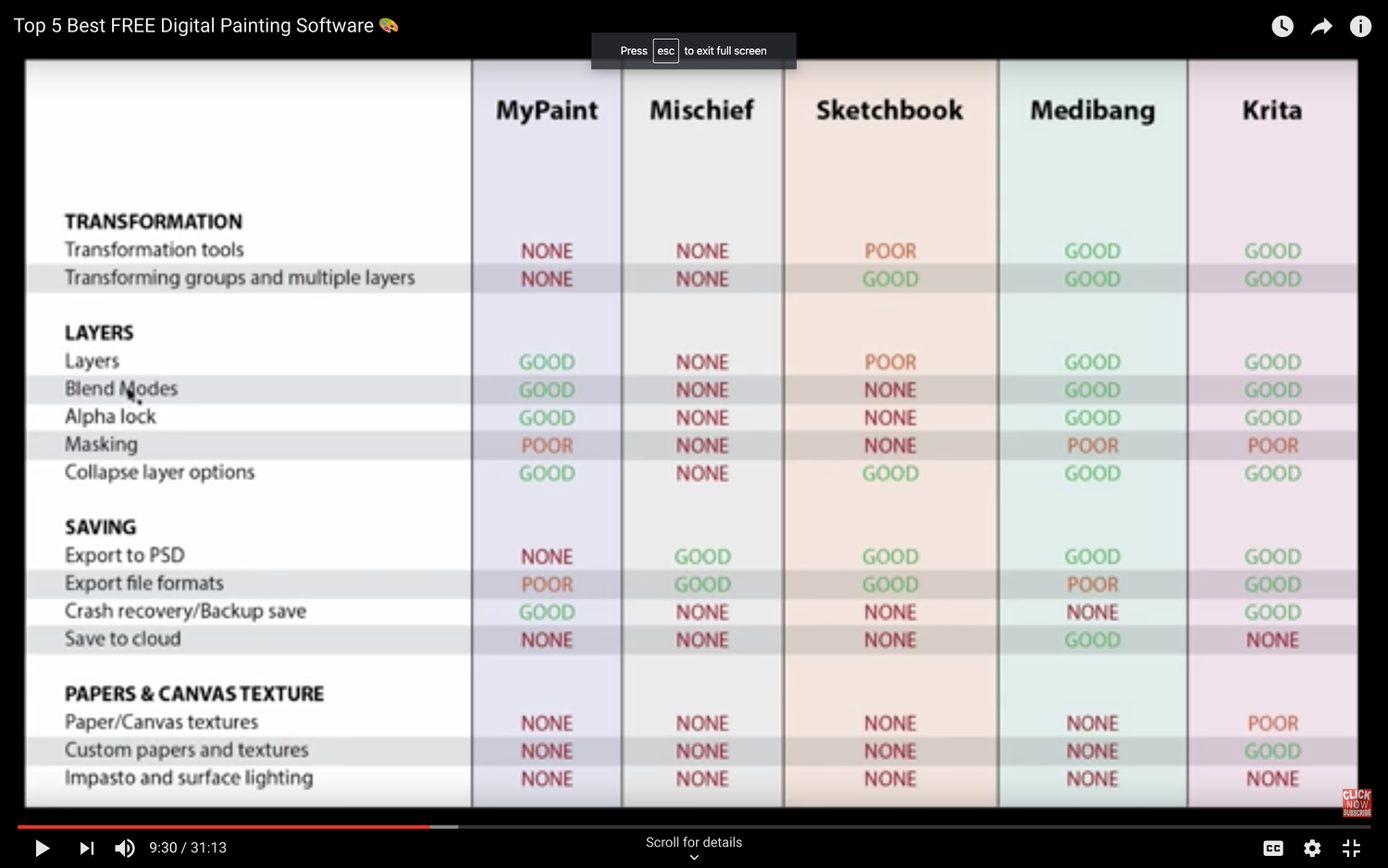
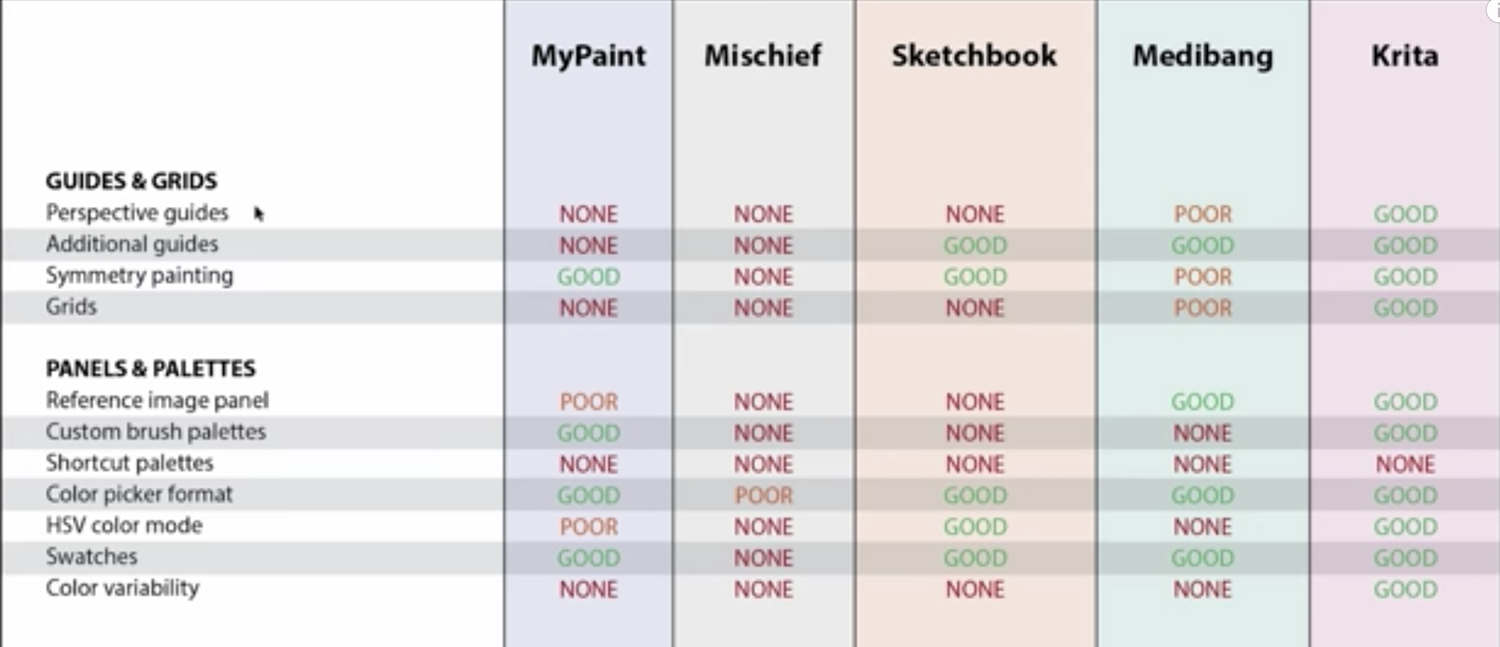
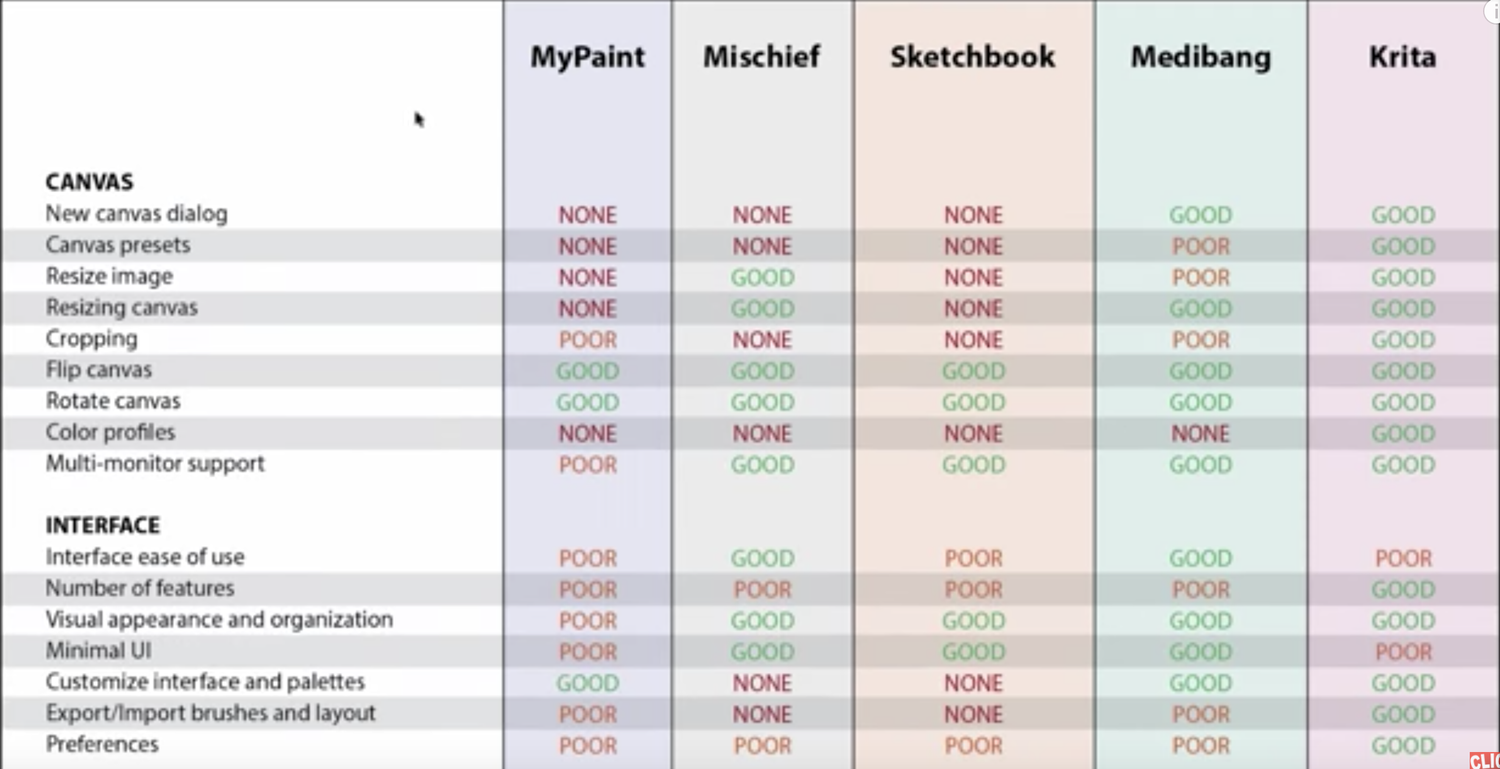
Are you new to digital arts? Did you want to learn digital arts but broke to buy Photoshop? Don;t worry. There‘s a lot of software available that you can get by FREE now. In this article, I will do a short review on 5 FREE drawing software which are Krita, Autodesk Sketchbook, Medibang Paint Pro, JumpPaint, and FireAlpace. All of these software is being tested in my Macbook Pro 2015 13” with macOS Mojave(not yet upgrade to Catalina due to low storage). Also, i’ll be using my pen tablet, XP-Pen Star G640s for this review.
This is not a full review of the software. In this article, I will only cover 5 aspects for each of the software:
- Installation
- Interface
- Tablet Compatibality
- Brushes
- Tools & Features
- Performance
1. Krita
[LOGO]
Installation
At first, i have a problem to get it downloaded from their download page. I need to go to Older Version page to download it. In that page there is a list of all stable version thathas been released including the latest stable version. I’m not sure whether this is only my issue, or it’s happening to all mac user. The file size is quite small compared to Photoshop. The installing process is so easy, just drag the Krita icons into the Applications folder. Once finish, you can start using Krita.
The interface
My first impression to Krita is really good. I like the interface. It kinda similar to Photoshop or any other drawing software. So if you coming from Photoshop, you can easily get a grasp on its interface. It easy to navigate and find tools that i want to use. It have mini preview of you working canvas. As you draw, you can see the preview at top right of the screen. For me, its really good if you working on large canvas.
Tablet compatibility
Using my pen tablet with Krita has no issue. All the default express keys is binded correctly. Pen pressure is working perfectly as well. However, when i start drawing, i found that it giving me some lag issue. At first i thought it is caused by my pen. But, even after disconnect my pen tablet and just start drawing with touch pad, the problem is still exist. I will tell more about this in Performace section.
Brushes
Krita has quite a number of default brush and you can customise the brush according to your personal preference.
Tools & Features
Krita comes with a lot of great features. It has layers, text, vector tools, perspective and symmetry guide, line stabilizer, and also animation tools. There’s still a lot feature that Krita has, but i only mention a few that i think where Krita really standout. Krita support exporting and importing a PSD file. This is great as you can use any Photoshop file to edit in Krita.
Performace
This is where the lies problem with Krita. I have some performance issue where the brush is lagging when i start to draw.
[IMAGE/GIF]
As you can see, when i want to start drawing a line, it will lag at early stroke. But after a few moment, the issue is no longer happen. But it happen again whenever i want to start drawing a new line. It really makes me frustrated. So i decide to Google the fix. And i found that some users having the same issue. There’s a few recommendation to fix this. But, the issue is still exist even though i tried all of the fix.
Conclusion
Krita is one of my prefered software after seeing a lot of good reviews from Youtube and blogs. But, when i tried for myself, the expectation is not meet. With the brush lag issue, i can’t really draw on this software. I hope Krita will fix this issue in the future. I really hope to use Krita as my main drawing software.
2. Autodesk Sketchbook
[LOGO]
Installation
Download and installation process is easy. You can download it from here. After the download is finish, just open the installer and follow the instruction. Once done, you can start using it right away.
The interface
Sketchbook has the best interface in my opinion so far. It has a really minimal interface. By default you will see this kind of layout.
[IMAGE]
Of course, you can change the layout according to your needs. For me, this is the setup that i prefer
[IMAGE]
Another thing that i want to highlight here is the Lagoon. Lagoon is the wheel that you see at bottom left of the screen. You can change the position of it and also customise the shortcut tools that you prefered. You can access the Lagoon by holding your pen ’right click’ button and navigate to which ever tools that you want to use. This kind of interface allow me to only use my pen to access my most frequent tools.
Tablet compatibility
Using my pen tablet with Sketchbook has no issue at all. The pressure is working as expected. You can adjust the pen pressure sensitivity as well. A few tests haas been made and all lines looks perfect to me. Hoever, i found that some of the default express keys is not working correctly. Thus, i have to setup the keys manually.
[IMAGE]
Brushes
I can say that Sketchbook has the largest brush library compared to the other software. It comes with a lot of set of brush. Of course, you can customise it settings as well. You can even download free brush pack from Sketchbook Extras
[IMAGE]
Tools & Features
Sketchbook also offer a lot of great tools such as layers, perspective and symmetry guide, line stabilizer, and also animation tools
Performance
Sketchbook performance is top notch. There is no brush lag issue at all. All lines drawn is smooth. The only minor issue that i found in Sketchbook is there is a bit lag when i try to zoom in/out and rotate using my macbook touchpad. However, there is no issue when i zoom in/out using Sketchbook zoom tool. By holding Spacebar, you will have access to its zoom tool. With this, you can easily zoom in/out and even rotate/move the canvas using your pen.
Conclusion
Sketchbook is currently my main drawing software. Because of its minimal interface, and its huge brush library. It takes time for me to get used to its interface and shortcut keys. But overall experience using Sketchbook is fantastic. I also see a lot of artist can make greate arts using Sketchbook. I really recommend Sketchbook for all beginner artist to start with.
3. Medibang Paint Pro
[LOGO]
Installation
Download and installation process is easy. You can download it from here. After the download is finish, just open the installer and follow the instruction. Once done, you can start using it right away.
The interface
Once you open Medibang, you will see an ads popup. After you close it, you will then see a Medibang Cloud Services window. Here, you will see a lot of service and settings that is provide by Medibang.
[IMAGE]
The interface is quite similar to Photoshop and Krita. It’s easy to navigate and access all its tools. You can easily adapt with the interface if you coming from Photoshop.
[IMAGE]
Tablet compatibility
My pen tablet is working as expected. The pressure is working fine. You can adjust the pen pressure sensitivity as well. A few tests haas been made and all lines looks perfect to me. All the default express keys is binded correctly. And yes, you can change the binding manually as well.
[IMAGE]
Brushes
At first, you will see a very basic set of brush in Medibang. You can change the size and opacity of the brush just like other software. I’m not sure if you can import any brush (as i haven’t doing full review while writing this article). But, you can still set the setting of the brush according to your preference.
[IMAGE]
Tools & Features
Medibang has all neccesarry feature for digital drawing like layers, text, paint bucket, selection tools, perspective and symmetry guide, as well as animation tools.
Performance
There is no performance issue when using Medibang. No lag issue, no lines issue, all drawing i made in this software is just perfect.
Conclusion
Medibang Paint Pro is a really a good drawing software. Performance is good, interface is nice. The only thing is that the brush is too limited. But, Medibang still a good choice for you to get started with digital arts.
4. JumpPaint
[LOGO]