A guide to set up Visual Studio Code to write programs in Julia.
1. Download theJulia programming language [1]
2. Download VS Code [2]
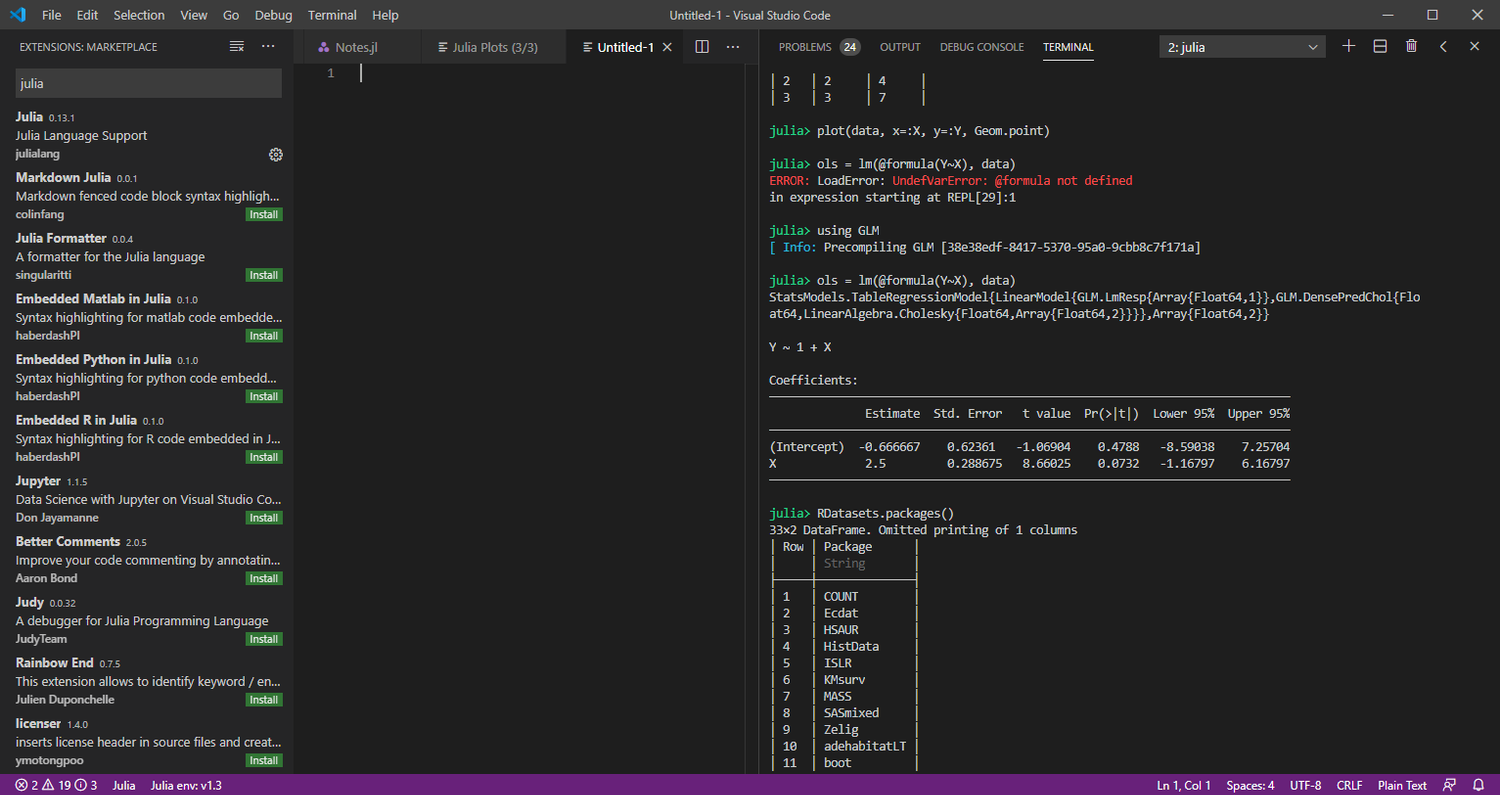
3. Start VS Code and open the extensions (Ctrl + Shift + x)
4. In the search field, search for ”Julia”, then download the ”Julia Language Support” extension
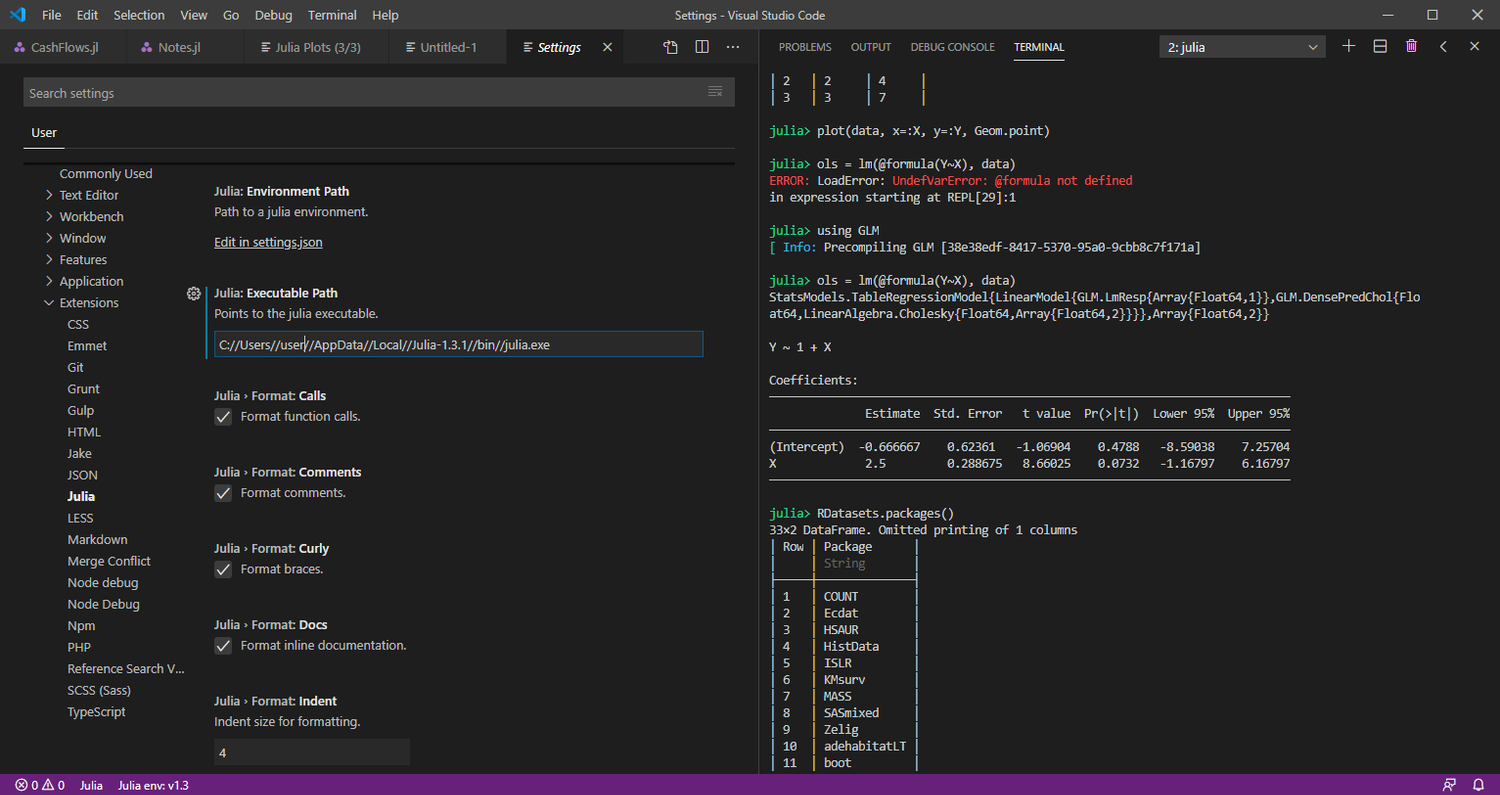
5.Opening “Settings” (Ctrl + ,), expand “> Extensions” and click on “Julia”
6. Find “Julia: Executable Path” and input the path to Julia’s .exe. Note the use of the escape charaters and the path will resemble something similar to the following (on Windows): C://Users//user//AppData//Local//Julia-1.3.1//bin//julia.exe
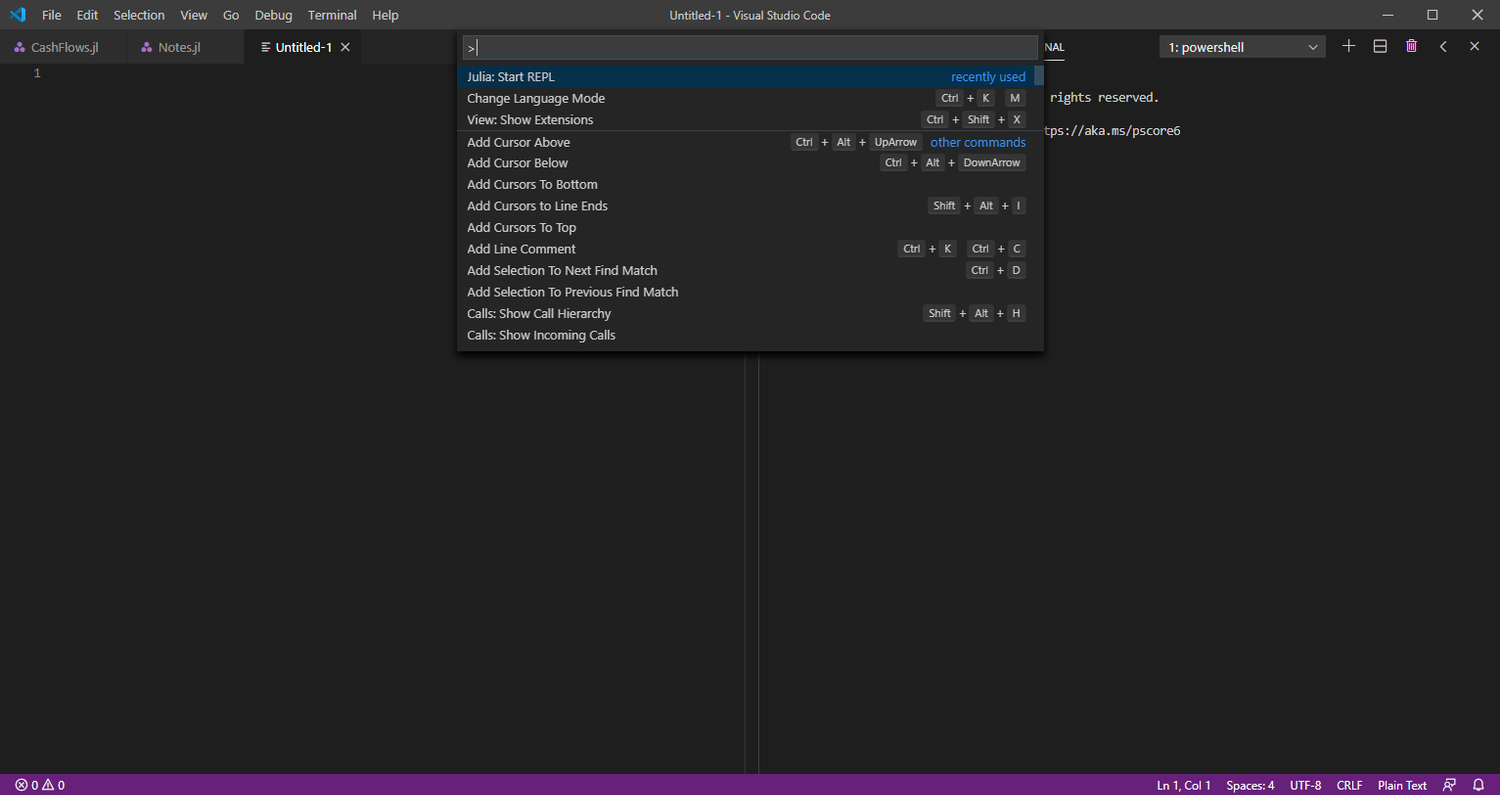
7. Start the Julia REPL by opening VS Code’s Command Palette (Ctrl + Shift + P) and search for “Julia: Start REPL”, then press enter
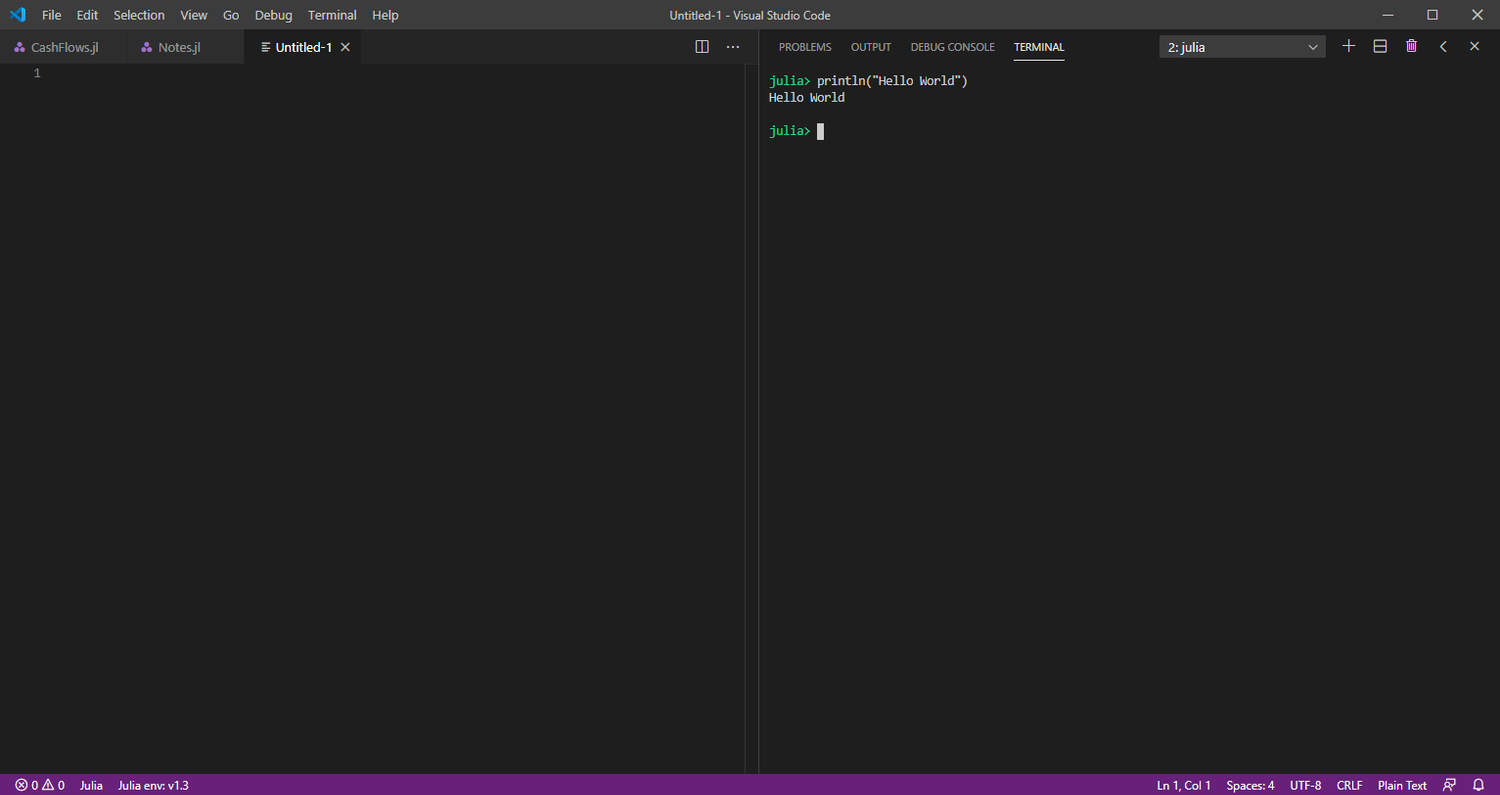
8. Julia should now prompt for an input, you’ll see the text “julia>” in the terminal. You may now input commands in the REPL to test that Julia is working
References
[0] Julia version 1.3 and Visual Studio Code version 1.42.0
[1] Julia: https://julialang.org/
[2] VS Code: https://code.visualstudio.com/
[3] Note by default, the terminal appears below the editor area