Why Should I jailbreak my device?
In iDevices Apple don't authorize you to install third-party apps in your iDevice. Using the jailbreak process you will have the power to get thousands of apps and tweaks, which are unavailable in the Apple app store.
What is Unc0ver Jailbreak?
This is a semi-untethered jailbreak that you can use for iOS devices. Unc0ver provides you the access to install unofficial tweaks and apps that are not allowed by Apple.
Is Unc0ver Jailbreak Safe?
Unc0ver is the most trustworthy jailbreak method for many years. You don’t need to worry this is actually a safe method that you can use for jailbreak because Unc0ver backed up with the expertise of many iOS developers who have fine-tuned it for optimal performance.
In this article, we are going to tell you how to jailbreak your Device running on iOS 13.5 using Unc0ver jailbreak method on your MacOS. Continue with our guide we stated here. You will be able to easily jailbreak your iDevice.
Follow these steps:
- First you need to go to this site and download AltStore for macOS from altstore.io (https://altstore.io/)
- Then move it to the Applications
- Now you need to open AltStore and you can find the application in the menu bar.
- Then click on that menu bar icon and select Install Mail Plug-in
- Then it will show you a pop-up box to Install Plugin
- You need to enter your administrator password here
- Then it will show up a confirmation box on the Mail Plug-in, click OK there
- Now open the Mail app
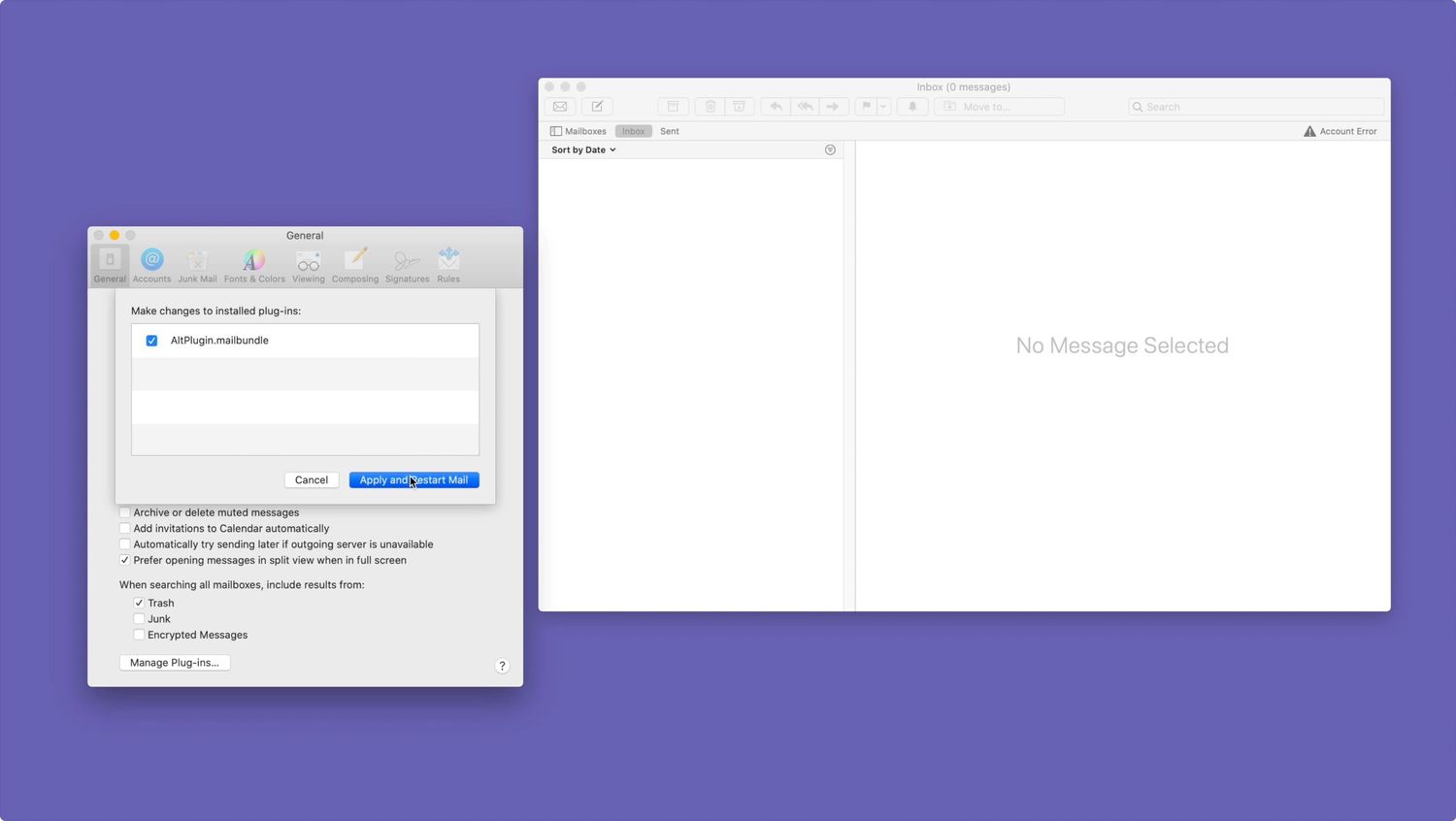
- Go to Mail > Preferences
- Then click on Manage Plug-ins button under the General tab
- There is a box next to AltPlugin.mailbundle. You need to check it
- Then click Apply and Restart the Mail
- Connect your iDevice to your Mac via a Lightning to USB cable
- Now open a Finder window and find your device under Locations. It will appear in the Finder sidebar.
- Select your iDevice and click Trust and make sure to Trust the button on your iOS device also. A pop-up will appear for this in there.
- Now click the AltStore menu bar icon.
- Select install AltStore and then select your iOS device name
- Then it will prompt again to get your Apple ID and Apple ID password. Enter those credential for the authentication
- Now you will see AltStore icon on your device’s Home screen
- Then go to Settings > General > Device Management and click on Apple ID panel
- Click twice on Trust here.
- Then launch the AltStore on your Home screen confirm it
- Now you need to open Safari and browse for unc0ver.dev
- Then click and open the Alt Store button. It will prompt again and click “AltStore”.
- Then enter your Apple ID and Apple ID password for the authentication on the Welcome to AltStore page
- After finishing the download process click the ‘7 Days’ button to move forward to the installation
- You will see Unc0ver icon on your Home screen after the installation is finished
- Now you need to click on the Unc0ver icon to begin the jailbreak process
- After the process is completed, your device will reboot
- After the reboot you need to launch Unc0ver and click the jailbreak button again to complete the jailbreaking process.
- After this your device will reboot again
- Now you need to find the Cydia icon on your Home screen
- Click it and begin installation of the jailbreak apps, themes and tweaks etc
This method consists of more steps and you may feel this is hard to perform if you are completely new to jailbreaking. If so, visit www.cydiacloud.com and there you can know everything about online jailbreaking which is suitable for newcomers.