Gmail has over 1.8 billion accounts worldwide and the number keeps growing. You’re probably one of them and so am I, my team, and probably the majority of Mailtrap users too. Gmail has gone through a lot of changes since it was first tested in 2004. One of them was about simplifying the compose window and removing the good old HTML editor. It doesn’t mean, however, that HTML is no longer supported by Google – it’s just a bit trickier to send HTML email from Gmail. Let’s see how it works.
Why import HTML into Gmail in the first place?
Gmail offers a WYSIWYG editor (What You See Is What You Get) by default, which is perfectly sufficient for nearly any communication. You can choose from a number of fonts, colours and sizes, align a copy, add bullet points or indentations, and even insert images or emojis.
Things get tough, though, when you need to use your company branding or other more complex formatting, not available in the default editor. Inserting a logo or banner is doable. You can hire a professional, or there is an easier and more affordable way – to use one of the logo maker tools available. For instance, you can check the functionality and features of Designhill Logo Maker, Zyro, or any other you would prefer.
But can you align those visuals properly with a text and make sure they look fine on any screen size? Probably not from the client itself.
In such situations, you need to rely on external tools or write your own HTML and insert it into a compose window.
Importing HTML into Gmail
If you were to simply copy the HTML code and paste it into the Gmail’s compose window, the receiver would only receive the very same raw HTML. In other words, Gmail wouldn’t render it in any way. If you’re exchanging emails with a fellow web developer, they may actually appreciate such an innovative way of communication. Most people won’t though. That’s why you need to use a simple workaround to insert HTML.
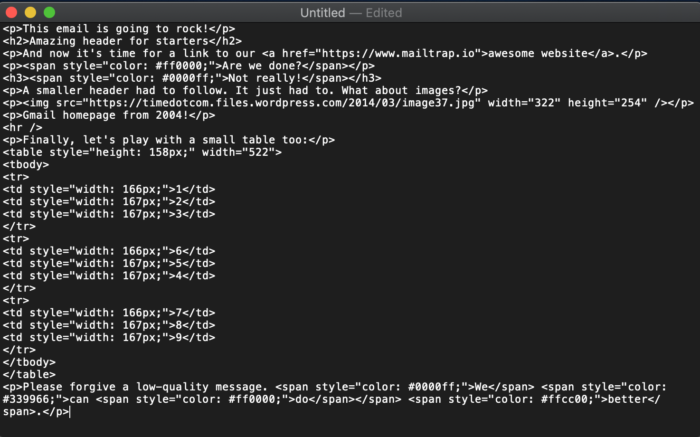
- Outside of Gmail, compose HTML code and save it as an .html file on your drive. Make sure your editor saves files as plain text, without any additional formatting. It also cannot add .txt or any other extensions to the file name, otherwise the code won’t be rendered properly. Mac’s TextEdit, for example, needs a few tweaks to work with HTML as expected. Here’s our sample, rather poor quality code:
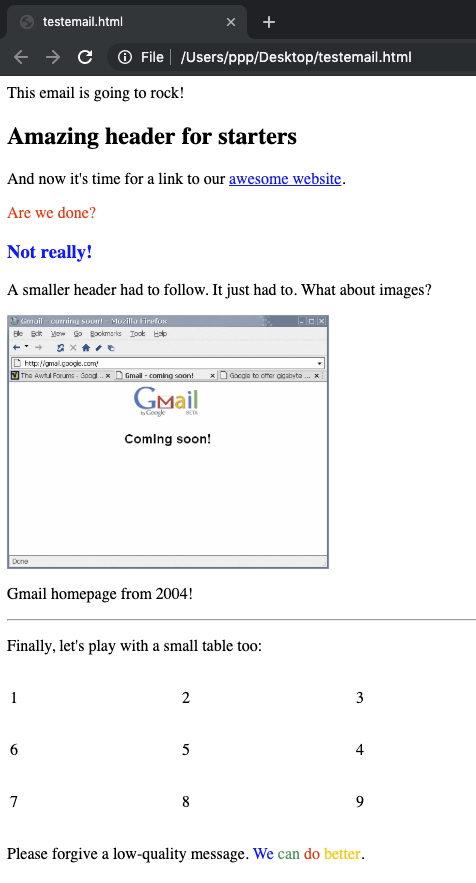
- Right-click on the file and open it with a browser of your choice. It should render as expected. If you see raw HTML, double check if the file was saved properly and your editor relies on plain text.
- Copy the entire content of a page, either with Ctrl+A (Windows) / Cmd+A (Mac) or just use a mouse or a trackpad. Then, insert it into your Gmail’s compose window and send!
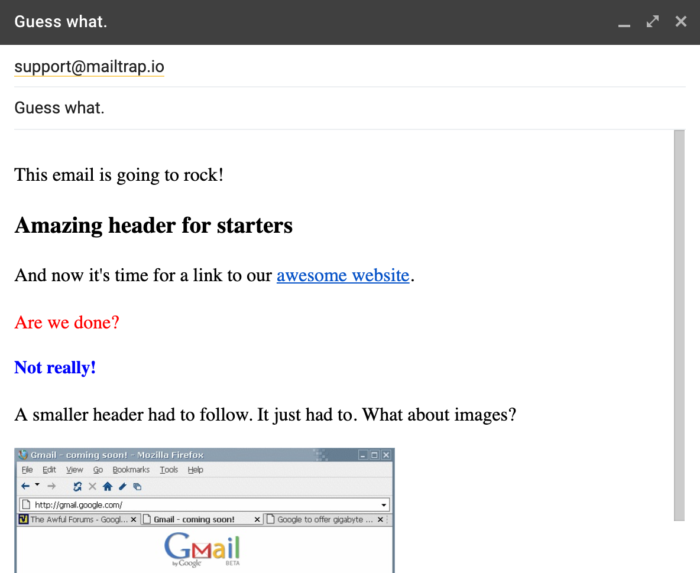
The email should arrive in exactly the same shape as it was last seen leaving your inbox.
Now you learned to send HTML mail in Gmail. Check out the original post by Mailtrap to learn about using HTML editors and testing your emails.