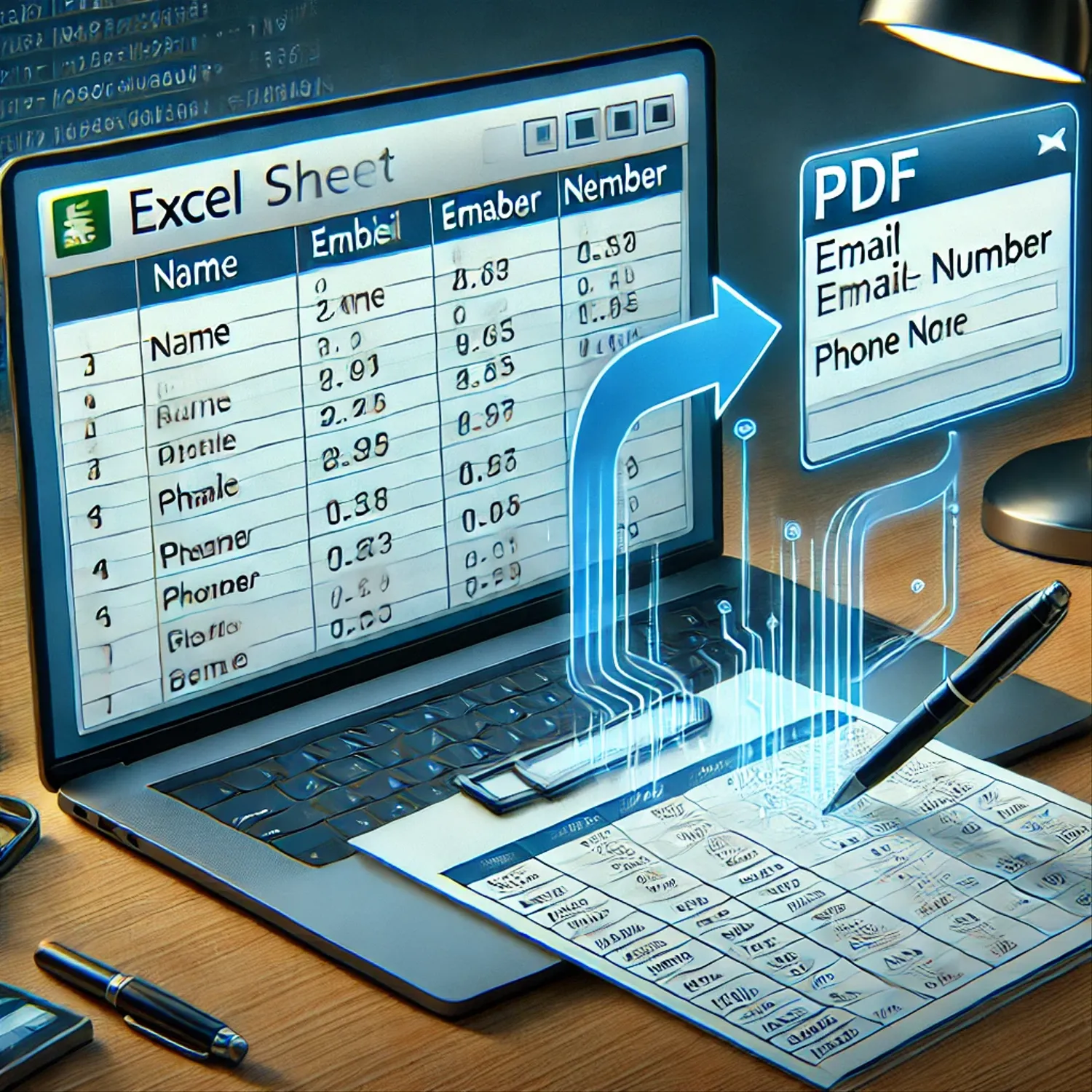
Manually filling out PDF forms can be a tedious and time-consuming task, especially when dealing with large amounts of data. Whether you're handling business applications, invoices, or any structured documents, automating the process can save significant time and reduce errors. In this article, we explore how to auto-fill PDF forms using data from Excel, streamlining your workflow efficiently.
Why Automate PDF Form Filling?
pdf auto fill forms are widely used for business, education, and official documentation due to their structured format. However, manually inputting data into multiple forms can be inefficient. Automating the process offers several advantages:
- Saves Time: Reduces the effort needed for repetitive data entry.
- Enhances Accuracy: Minimizes human errors during form filling.
- Boosts Efficiency: Allows bulk document processing quickly.
- Ensures Consistency: Standardizes the data across multiple forms.
Methods to Auto-Fill PDF Forms from Excel
Using Excel to populate PDF forms can be done in multiple ways, depending on the tools and level of customization required. Let’s explore the best approaches:
1. Using Adobe Acrobat for PDF Form Automation
Adobe Acrobat Pro DC includes a built-in feature for importing Excel data into a fillable PDF form. Follow these steps:
- Prepare the Excel Data: Ensure your spreadsheet is well-structured, with column headers matching the PDF form fields.
- Open the PDF Form in Adobe Acrobat: Use Adobe Acrobat Pro DC to access your fillable PDF.
- Import Data: Navigate to Tools > Prepare Form, then select More > Import Data and upload your Excel file.
- Map the Fields: Acrobat will auto-map the data fields from Excel to the PDF form.
- Save and Export: After verifying the entries, save the completed PDF file.
This method works well for users who already have access to Adobe Acrobat Pro DC and need a simple, built-in solution.
2. Automating PDF Forms with Python
For tech-savvy users, Python provides a powerful solution for bulk-filling PDF forms using libraries like PyPDF2, pdfFiller, or ReportLab.
- Install Required Libraries:
pythonCopyEditpip install PyPDF2 pandas pdfFiller - Extract Excel Data: Load Excel data using Pandas.
- Insert Data into PDF: Use a PDF processing library to populate the form fields.
- Export the Final File: Save the filled PDF for further use.
This method is ideal for those who require high-level customization and full control over the automation process.
3. Using Online Tools to Fill PDF Forms
If you prefer a no-code solution, several online platforms allow users to import Excel data and auto-fill PDF forms easily. Some popular tools include:
- DocuSign: Supports bulk form filling with Excel data.
- PDF.co: Automates the conversion of Excel data into PDF forms.
- JotForm PDF Editor: Enables easy population of PDFs from Excel spreadsheets.
These tools are excellent for users who need a quick and straightforward way to automate PDF form filling without installing software.
Best Practices for Seamless Auto-Filling
To ensure a smooth and error-free PDF automation process, follow these best practices:
- Maintain Consistent Field Names: Ensure the column names in Excel match the PDF form fields.
- Clean Data Before Importing: Remove unnecessary spaces and correct formatting issues to avoid errors.
- Test with a Sample File: Run a small test before processing large batches to verify accuracy.
- Keep a Backup Copy: Always retain original versions of Excel and PDF files before making changes.
Final Thoughts
auto fill pdf form from excel can significantly boost efficiency in handling documents. Whether using Adobe Acrobat, Python programming, or online tools, automation reduces manual labor, enhances accuracy, and streamlines document processing. Pick the method that best suits your needs and optimize your workflow today