In daily office or study, we often encounter scenarios where we need to extract key pages from long PDFs, such as: When submitting materials, only the signature page in the contract is required; When sharing reports, hide sensitive data pages; Filter specific content before merging multiple PDFs.
How to quickly extract specific pages from PDF? The page extraction function can avoid the transmission of redundant files and improve efficiency and privacy.
Method 1: One-click extraction with online PDF Converter
Advantages: Free, cross-platform, and completes extraction within 5 seconds.
Operation steps:
1. Access the PDF Converter page extraction function, click "Upload" or drag the file to the specified area.
Supports direct import from Google Drive, Dropbox and other cloud platforms.
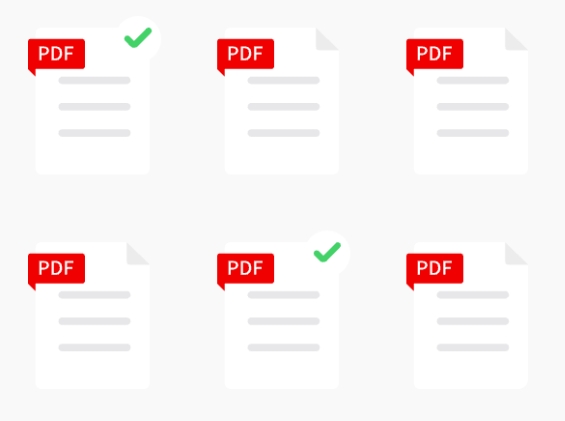
2. In the preview interface, check the target page number (such as "1-3" or "5,7,9"), and support custom range.
3. Click "Extract Pages" and the system will automatically split the file. After completion, it will be downloaded directly to the local computer.
Applicable scenarios: temporary needs, mobile terminal operations, and fast processing of multiple files.
Method 2: Adobe Acrobat (preferred by professional users)
Applicable people: workplace users who need to edit PDFs frequently or process encrypted files.
Detailed guide:
1. Open the PDF with Adobe Acrobat and click "Organize Pages" on the right toolbar.
2. Select "Split Document" and set the extraction range (such as "Every 1 Page" or a custom interval).
3. Advanced options can set the output file name rules and save path.
4. Click "Split" and the system will generate a new PDF containing the selected pages.
Advantages: Accurately retain the original format and support PDF OCR scan processing.
FAQ
Q1: Will the extracted PDF be compressed?
Using professional tools (such as Adobe Acrobat or PDF Converter) can ensure lossless extraction, and the clarity of images and text remains unchanged.
Q2: How to operate on a mobile phone?
Access the PDF Converter mobile terminal page through a browser. The functions are the same as the computer terminal and support iOS/Android.
Q3: Can pages be extracted from encrypted PDFs?
If the file has editing permission restrictions, you need to use a decryption tool to remove the restrictions first, or use Adobe Acrobat to enter the password before operating.
Summary: Choose the best solution according to your needs
PDF Converter is recommended for daily light use. Its cloud processing capabilities and privacy protection mechanism take into account both security and convenience.