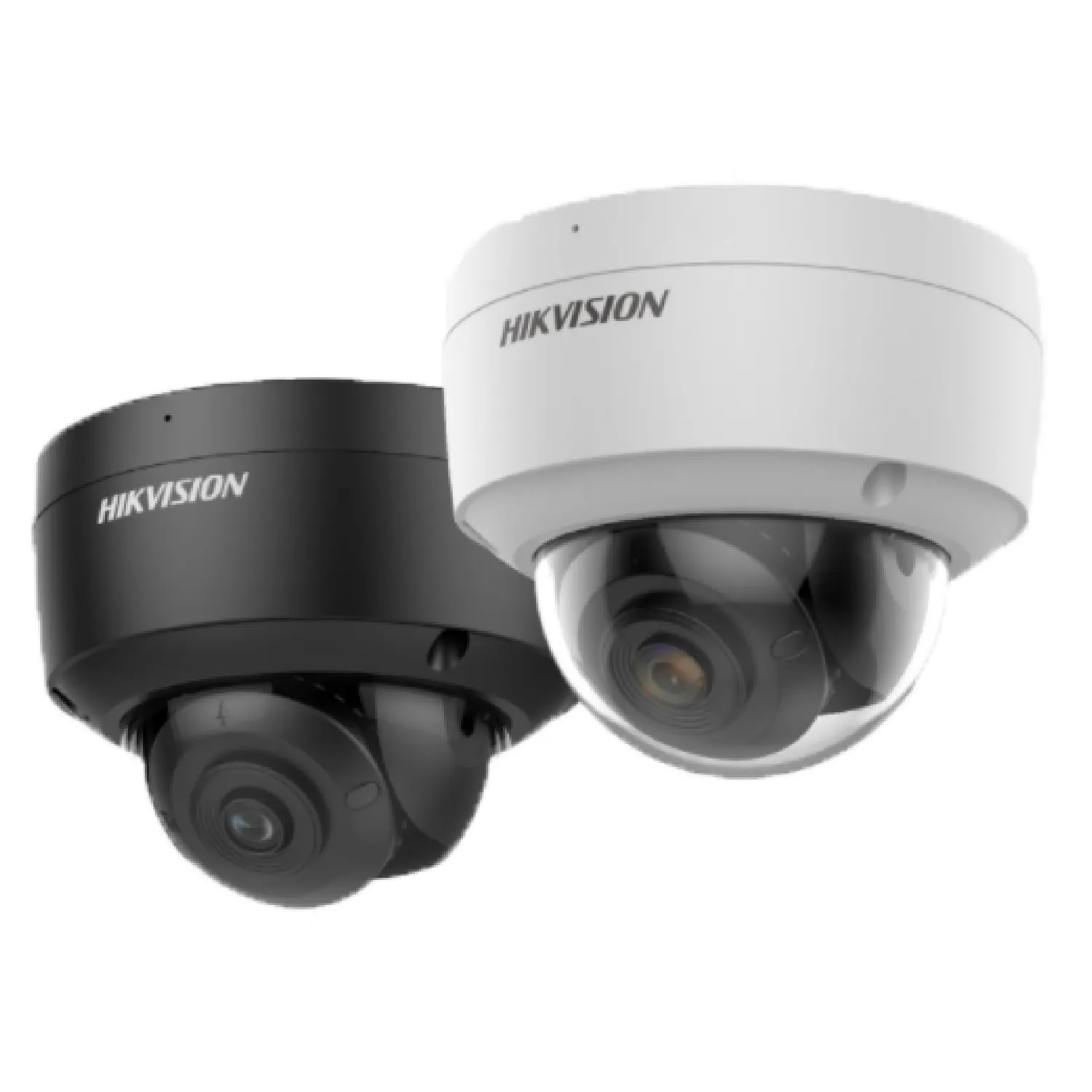
Hikvision is one of the leading brands in the CCTV camera industry, known for its reliable security solutions. However, like any electronic device, Hikvision cameras can encounter issues from time to time. Whether you're a homeowner or a business owner, understanding how to troubleshoot common problems with Hikvision can help ensure your security system operates smoothly. In this blog, we’ll discuss some of the most frequent issues with Hikvision CCTV cameras and how to fix them.
1. No Video or Black Screen
Issue:
One of the most common problems users face with their Hikvision cameras is a lack of video feed or a black screen. This issue can stem from a variety of reasons, including poor cable connections, camera settings, or even power issues.
Solution:
- Check the Power Supply: Ensure that your Hikvision camera is powered on. If you’re using a PoE (Power over Ethernet) switch, confirm that the switch is properly connected and providing power to the camera.
- Inspect the Cables: Examine both the power and video cables for any visible damage. A loose connection or a faulty cable can cause the camera feed to go black.
- Camera Settings: Log into the camera’s web interface and check the video settings. Make sure that the camera’s resolution, frame rate, and compression settings are correctly configured.
2. Network Connection Issues
Issue:
Sometimes, Hikvision cameras might not connect to the network properly, leading to intermittent video streams or complete disconnection. This issue can often be traced back to network settings or hardware problems.
Solution:
- Check Network Cables: Ensure that the Ethernet cables connecting your camera to the router or switch are securely plugged in and undamaged.
- IP Address Conflict: Make sure there are no IP address conflicts within your network. If another device is using the same IP address as your camera, this can cause connection issues. Assign a static IP to your camera if needed.
- Reset the Camera: Sometimes, resetting the camera to factory settings can resolve network issues. After resetting, reconfigure the camera and reconnect it to the network.
3. Poor Image Quality or Blurry Footage
Issue:
Another common issue with Hikvision CCTV cameras is poor image quality or blurry footage. This can happen due to several factors such as lens problems, incorrect settings, or environmental conditions.
Solution:
- Check the Lens: Clean the lens gently using a soft cloth. Dust, fingerprints, or other debris on the lens can cause blurry footage.
- Adjust Focus: Many Hikvision cameras feature adjustable lenses for focus. Ensure that the camera is correctly focused to capture sharp images.
- Lighting Conditions: Poor lighting can contribute to low-quality images. Ensure that the camera is positioned in an area with adequate lighting or invest in an infrared (IR) camera for nighttime surveillance.
- Adjust Camera Settings: Log into your camera's settings and adjust the resolution, contrast, and other image-related settings to optimize image quality.
4. Camera Is Offline or Not Detecting Motion
Issue:
If your Hikvision camera is offline or not detecting motion, it can be a sign of either a connectivity problem or incorrect motion detection settings. This can be particularly frustrating if you're relying on the camera for security monitoring.
Solution:
- Check Internet Connection: If your Hikvision camera is connected to the internet, make sure your internet connection is stable. A weak or intermittent connection can cause the camera to go offline.
- Motion Detection Settings: Access the camera’s configuration settings and check the motion detection parameters. Make sure that motion detection is enabled, and adjust the sensitivity to suit the environment.
- Firmware Update: Sometimes, outdated firmware can cause issues with functionality. Make sure that your Hikvision camera has the latest firmware installed by visiting the Hikvision website for updates.
5. No Sound or Audio Issues
Issue:
Hikvision cameras that support two-way audio or sound recording might experience issues with audio. This can happen due to misconfigured settings or hardware malfunctions.
Solution:
- Check Audio Settings: Make sure that the audio settings are enabled in the camera’s web interface. Check that the microphone and speakers are not muted.
- Inspect Microphone and Speaker: Ensure that the camera’s built-in microphone and speaker are working properly. If using an external microphone or speaker, confirm that they are securely connected.
- Check Network Bandwidth: Insufficient network bandwidth can cause audio problems. Make sure your network can handle the additional load from the camera’s audio features.
6. Camera Overheating
Issue:
Hikvision cameras, especially outdoor models, can sometimes overheat, especially in direct sunlight or poorly ventilated areas. Overheating can cause the camera to malfunction or even shut down.
Solution:
- Relocate the Camera: If possible, move the camera to a cooler, shaded area to prevent overheating. Ensure that the camera is not placed in direct sunlight for long periods.
- Use a Protective Housing: Consider installing your Hikvision camera inside a protective housing with ventilation to help regulate the temperature.
- Regular Maintenance: Check the camera regularly for dust or debris buildup that may obstruct airflow and cause overheating.
7. Camera Firmware Updates Causing Issues
Issue:
Sometimes, after updating the firmware on your Hikvision camera, you may notice performance issues or a complete loss of functionality. This can be frustrating, especially if the update is intended to fix previous bugs.
Solution:
- Rollback the Firmware: If the latest firmware update causes problems, consider rolling back to a previous version. You can find older firmware versions on the Hikvision support website.
- Reinstall Firmware: In some cases, reinstalling the firmware can help resolve issues caused by incomplete updates.
- Check Compatibility: Ensure that the firmware version you are updating to is compatible with your specific model of Hikvision camera.
8. Accessing Hikvision Camera Remotely
Issue:
Accessing your Hikvision camera remotely can be tricky, especially when firewall or port forwarding issues are preventing you from connecting.
Solution:
- Port Forwarding: Ensure that the necessary ports are open on your router for remote access. Typically, port 80 and port 8000 need to be forwarded for web and mobile app access.
- DDNS (Dynamic DNS): If your ISP assigns dynamic IP addresses, consider setting up a DDNS service to ensure you can access your camera remotely, even if your IP address changes.
- Use Hik-Connect: Hikvision’s Hik-Connect app allows you to access your camera remotely without the need for complex network configurations. Simply register your camera in the app and use your account for easy access.
Conclusion
Hikvision cameras are generally reliable and offer advanced features for security monitoring. However, like any technology, they can experience issues. Understanding common problems such as connectivity issues, poor image quality, or firmware complications—and knowing how to fix them—will help ensure that your security system remains functional and effective. If the problem persists despite troubleshooting, contacting Hikvision support or a professional installer might be the best course of action.
By staying on top of these common Hikvision camera problems, you can maintain a secure and efficient surveillance system for your home or business.