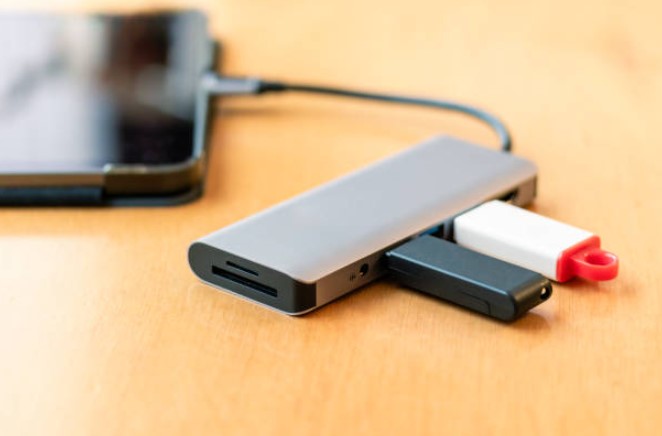
USB drives have become an essential part of our digital lives. They're compact, portable, and versatile, making them an ideal choice for carrying files, documents, and data wherever we go. However, with convenience comes the challenge of maintaining an organized USB drive. It's easy for these little devices to turn into digital junk drawers, making it frustrating to find what you need when you need it. In this article, we'll explore effective strategies to optimize file organization on your USB drive so you can make the most out of this valuable tool.
The Importance of Organizing Your USB Drive
Before diving into the specifics of file organization, let's talk about why it's crucial. Imagine you're in a hurry, needing to present an important document during a meeting or share critical files with a colleague. A cluttered USB drive can lead to wasted time and frustration, not to mention potential embarrassment.
- Clear Out the Clutter: The first step in optimizing your USB drive is to declutter it. Begin by plugging your drive into your computer and opening it in File Explorer (Windows) or Finder (macOS). Take a moment to look through the files and folders. Delete any unnecessary files, duplicates, or outdated documents.
- Create a Folder Hierarchy: An effective file organization system starts with creating a clear folder hierarchy. Think of this as the foundation of your digital filing cabinet. Create top-level folders for broad categories like "Work," "Personal," "Projects," or "Photos." Inside these folders, create subfolders for more specific items.
- Use Descriptive Names: When naming folders and files, be as descriptive as possible. Instead of "Folder 1" or "Document XYZ," opt for names like "2019 Vacation Photos" or "Quarterly Sales Report Q3 2023." Descriptive names make it easy to locate what you need at a glance.
- Organize by Date: For files that are time-sensitive or related to specific events, consider organizing them by date. Create folders for each year, and within each year, create subfolders for months or events. This method is especially handy for keeping track of photos, invoices, and project files.
- Use Color Coding: If your USB drive supports it, take advantage of color coding for folders. Assign different colors to various categories or projects, making it even easier to spot the right folder quickly.
- Regular Maintenance: File organization isn't a one-time task. Set aside a few minutes every month to review and tidy up your USB drive. Delete files you no longer need and reorganize as necessary to accommodate new additions.
- Backup Your USB Drive: No matter how organized your USB drive is, it's essential to have a backup. Regularly copy the contents of your drive to a secure location, such as an external hard drive or cloud storage. This ensures that even if your USB drive is lost or damaged, your data remains safe.
The Power of Digital File Labels
Now that we've discussed the importance of an organized USB drive, let's explore a tool that can take your file organization to the next level: digital file labels. These labels act as signposts, guiding you to the right files with ease.
Digital file labels are like road signs on the information highway.
Think of your USB drive as a vast digital landscape. Without proper labeling, it's like navigating a foreign country without knowing the language. Labels provide context, making it simpler to find what you need when you need it.
But how do you effectively use digital file labels to optimize your USB drive's organization?
- Color-Coded Labels: Just as we mentioned earlier about using colors for folders, consider color-coding your digital file labels. For example, use red labels for urgent files, green for personal documents, and blue for work-related files.
- Consistent Naming Conventions: Develop a consistent naming convention for your labels. If you're using labels to denote the status of a project, make sure everyone on your team understands the system. Consistency reduces confusion.
- Prioritize Labels: Not all files are equal in importance. Prioritize your labels to quickly identify critical documents. You might use "High Priority," "Medium Priority," and "Low Priority" labels to sort your files accordingly.
- Searchable Keywords: When creating labels, include relevant keywords. These keywords should reflect the content and purpose of the file. This can be a game-changer when you're using the search function to find a specific file.
- Tagging Collaboration: If you're working on a team project, collaborate on the label system. Ensure that everyone understands and agrees on the label categories and their meanings. This creates a seamless and organized workflow.
- Archive Labels: Over time, you may accumulate numerous labels. Don't be afraid to archive or retire labels that are no longer relevant. Keeping a lean label system ensures that you're not overwhelmed with choices when searching for a file.
- Label Management Tools: Utilize label management tools available in your operating system or file management software. These tools often provide features like batch labeling, which can save you time when organizing multiple files.
By harnessing the power of digital file labels, you transform your USB drive into a well-organized, easily navigable digital space. It's like having a GPS for your files, ensuring that you reach your digital destination without getting lost in the digital wilderness.
Conclusion
Optimizing file organization on your USB drive is a simple yet highly effective way to enhance your productivity and reduce frustration in your digital life. By following these steps and embracing the power of digital file labels, you'll have a tidy, efficient USB drive that serves as a reliable companion for your data storage needs.
Remember, a clutter-free USB drive not only saves you time but also ensures that you're always prepared for whatever digital journey lies ahead. So, take a moment to declutter, create a logical folder hierarchy, and implement a robust labeling system. Your USB drive will thank you, and so will your peace of mind when it comes to file organization.